Guide
Quick Start
A short match-day sequence for getting from setup to Post Match without changing hidden game state unexpectedly.
Interface
Button colours and Home / Guest identity
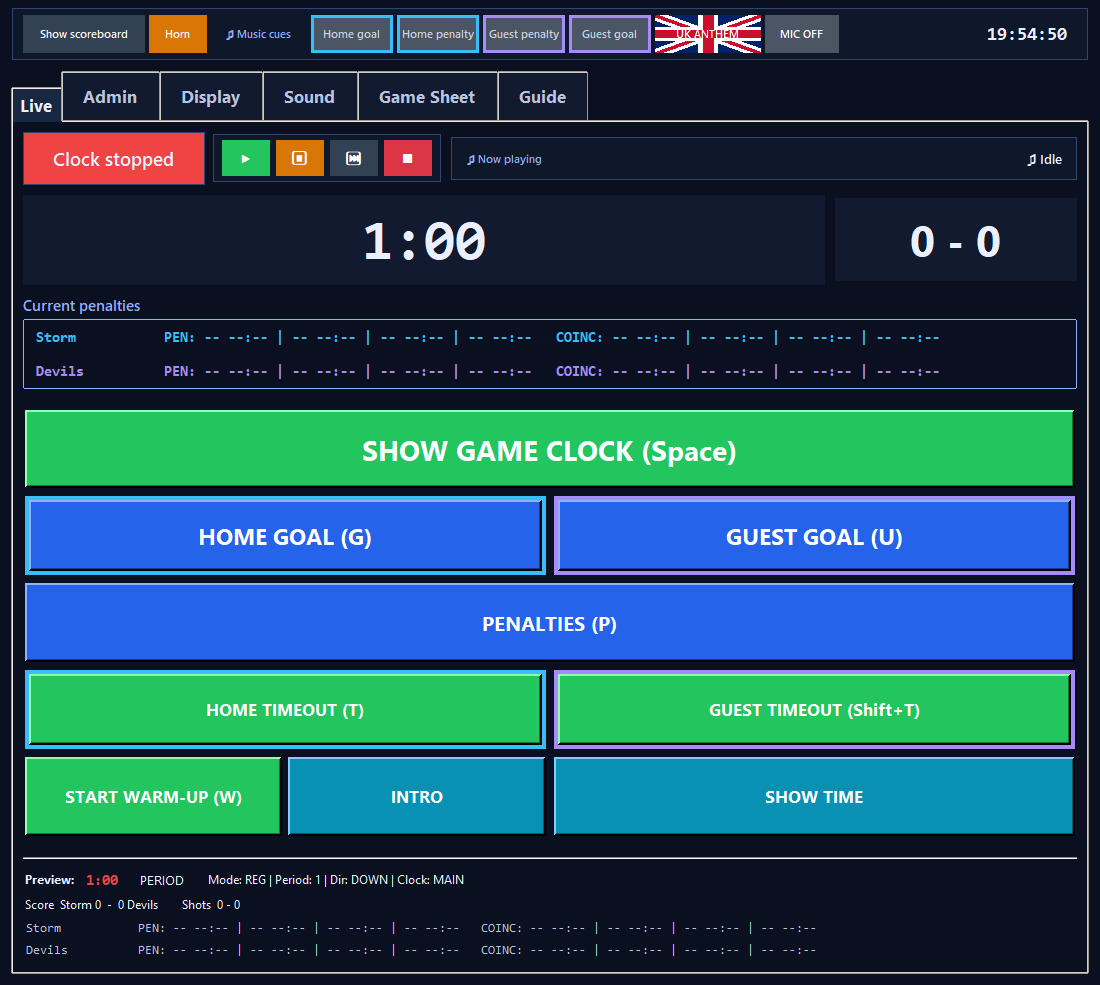
RinkScore uses one semantic action palette across LIVE, ADMIN, DISPLAY and SOUND, with a separate persistent team accent for Home and Guest controls.
What happens
Green = Start/Resume/Play; red = Stop/End/Reset; blue = Add/Apply/Save/Set/Choose; slate = Edit/Move/Navigation/Configuration; cyan = Display/Preview/Special; amber = Test/Warning/Recovery; dark red = Clear/Remove/Delete; grey = Disabled. Home = cyan outline/accent (#38BDF8); Guest = violet outline/accent (#A78BFA).
Team identity remains visible when a team control is disabled.
View screen
Live match controls
Before the match
1. Pre-match setup
Prepare team names, logos, Pre-Match text and music before the game clock is used.
Steps
- Open ADMIN while the clock is stopped to set team names and timing defaults.
- Open DISPLAY to load logos, set Warm-up Start Time and Face Off Time, and choose a theme.
- Use the embedded Pre-Match preview to confirm the layout without changing the live scoreboard state.
- Open SOUND > Music Live & Levels to confirm Music Master is enabled and category enables are correct.
- Use SOUND > Music Catalogue to check the song library.
What happens
The scoreboard can remain on the Pre-Match scene while setup is completed.
Saved settingsDisplay, timing, horn and music configuration can be saved; current game score and live clock state are game state.
Related: Embedded preview, Home team name, Music Master Enable
Warm-up
2. Choose mode and start Warm-up
Choose whether the match will use the traditional scoreboard only or the live Game Sheet before Warm-up begins.
Steps
- Press Start Warm-up from LIVE or ADMIN.
- Choose Game Sheet Mode or Standard Scoreboard.
- The selected mode starts Warm-up immediately; there is no additional startup prompt.
- This choice is presented every time Start Warm-up is pressed.
What happens
Game Sheet Mode creates/activates the autosaved match record. Standard Scoreboard keeps the traditional scoreboard workflow.
Related: START WARM-UP, Standard Scoreboard vs Game Sheet Mode, Auto intermission after warm-up
Starting play
3. Show clock, then start the game
Separates revealing the game scoreboard from starting the main period clock and prevents Intro from hiding a running timer.
Steps
- From Pre-Match, press SHOW GAME CLOCK or Space once.
- If Intro is still playing, RinkScore stops Intro first, then switches to the full game scoreboard with Period 1 and the configured clock stopped.
- The same control then becomes START GAME CLOCK; press it again at puck drop.
- After play has begun it becomes the normal RESUME / STOP CLOCK control.
What happens
The first action never starts the clock, never marks the game started and never triggers the first-resume logging prompt. The second action begins the game clock and eligible penalty clocks.
A clock cannot be started or revealed invisibly behind Intro.
When to use itAfter pre-Period 1 and later intermissions, RinkScore already prepares the next game clock stopped, so only START/RESUME is needed.
Related: SHOW / START / RESUME / STOP CLOCK, Regulation format and intermissions
View screen
Live match controls
Period flow
4. Period and intermission flow
Use automatic period-end progression while keeping the next period stopped until the operator starts play.
Steps
- When P1 or P2 reaches zero, allow the intermission timer to run.
- When it ends, the app prepares the next regulation period at the configured regulation length and leaves it stopped.
- Start it at puck drop.
What happens
P1 -> intermission -> P2 stopped; P2 -> intermission -> P3 stopped.
Related: End intermission, Automatic period progression
View screen
Clock and timing controls
Timeout
5. Team timeout
Run a team's one permitted 30-second scoreboard timeout without consuming the other team's allowance.
Steps
- Stop the scoreboard clock, make sure warm-up is not active, then press Home timeout or Guest timeout.
- Cancel from ADMIN if necessary.
What happens
TIMEOUT and a 30-second countdown are shown; the main game clock and penalty clocks pause. Timeout music can play as its own category.
When to use itEach team has an independent one-use flag. Timeout buttons are disabled while any scoreboard clock is running, throughout Warm-up even when paused, while another timeout is active, and in Current Time mode.
From a stopped game context the unused team's timeout becomes available again.
Related: Home timeout, 30-second timeout calculation, Timeout automatic enable
View screen
Live match controls
End of regulation
6. Tied after P3
Prepare the configured overtime after regulation when P3 ends tied.
Steps
- Normally allow P3 to reach 00:00.
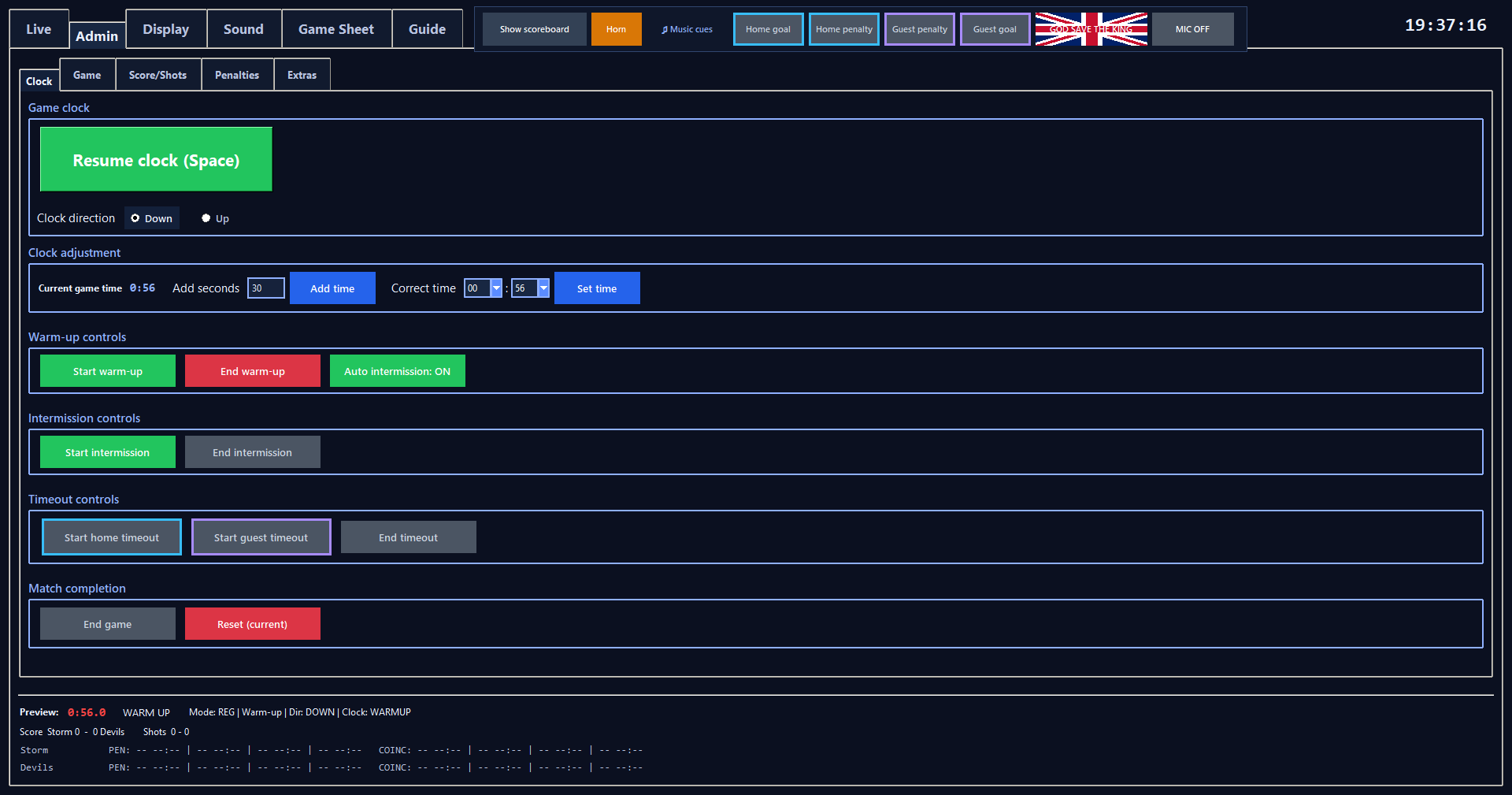
- If officials end regulation early, stop the game clock and press ADMIN > Clock > Start intermission; confirm the End regulation prompt.
- A tied score starts the configured OT intermission.
- Allow it to finish or use End intermission if directed.
- The app then prepares OT at the configured OT length and leaves it stopped for puck drop.
What happens
Period 3 is treated as complete, its clock is normalised to 00:00, the P3 → OT intermission runs, then mode changes to OT. A zero-length P3 → OT intermission prepares OT immediately but still leaves the OT clock stopped.
Related: Start intermission, End intermission, Regular-season overtime
View screen
Clock and timing controls
End of game
7. Post Match
Show the final score and next-fixture information when the match ends.
Steps
- A regulation winner at P3 00:00 and a sudden-victory OT goal still go to Post Match automatically.
- To end the match manually at any other valid stopped or running game context, press ADMIN > Clock > END GAME and confirm.
- RinkScore stops the active clock and switches directly to Post-Match without resetting match data.
- DISPLAY > Post-Match has an embedded preview for configuration and does not change match state.
What happens
Final score remains authoritative from the live Home/Guest score in the model. Next Fixture, Date and Location use the separate Post-Match text fields.
Related: END GAME, Embedded preview, Next Fixture
Recovery
8. Manual recovery without New Game
Correct a local operator mistake while preserving the rest of the match state.
Steps
- Use Reset (current) for the active clock, Add time for a small positive correction, Correct time / Set time for an exact official-clock correction, End intermission for intermission recovery, REG/OT/SO only when a mode correction is required, and Correct time/Clear slot for penalties.
- Use NEW GAME only when a full match reset is intended.
When to use itMake corrections with the game clock stopped.
Related: Reset (current), Correct seconds / Correct time, NEW GAME - RESET EVERYTHING
View screen
Clock and timing controls
Controls
Blue segmented numeric selectors
Numeric up/down settings throughout RinkScore use the same touch-friendly blue ▲ / value / ▼ control.
Steps
- Tap ▲ on the left to increase or ▼ on the right to decrease by one step.
- Press and hold either arrow to keep changing the value automatically; after the initial hold the repeat rate accelerates slightly for large changes such as 100 to 0.
- The centre tile shows the current value and the arrow at a valid minimum/maximum disables automatically.
- Dense Music, Display and Advertising layouts use a compact version of the same control; named choices such as themes, fonts and categories remain drop-down lists.
Blue drop-down selectors
Drop-down lists use the same blue control family as numeric selectors: a dark value field, light-blue outline and blue arrow segment. Text-entry fields use the same light-blue outline for a consistent touch-friendly interface.
Light-blue scrollbars
Vertical and horizontal scrollbars use a light-blue thumb and arrow controls on a dark track, with a brighter blue active state. Advertising is intentionally different at page level: it has no outer scrollbar; only the Advertising Library list gets an auto-hiding scrollbar when its advert rows do not fit.