LIVE
LIVE workspace
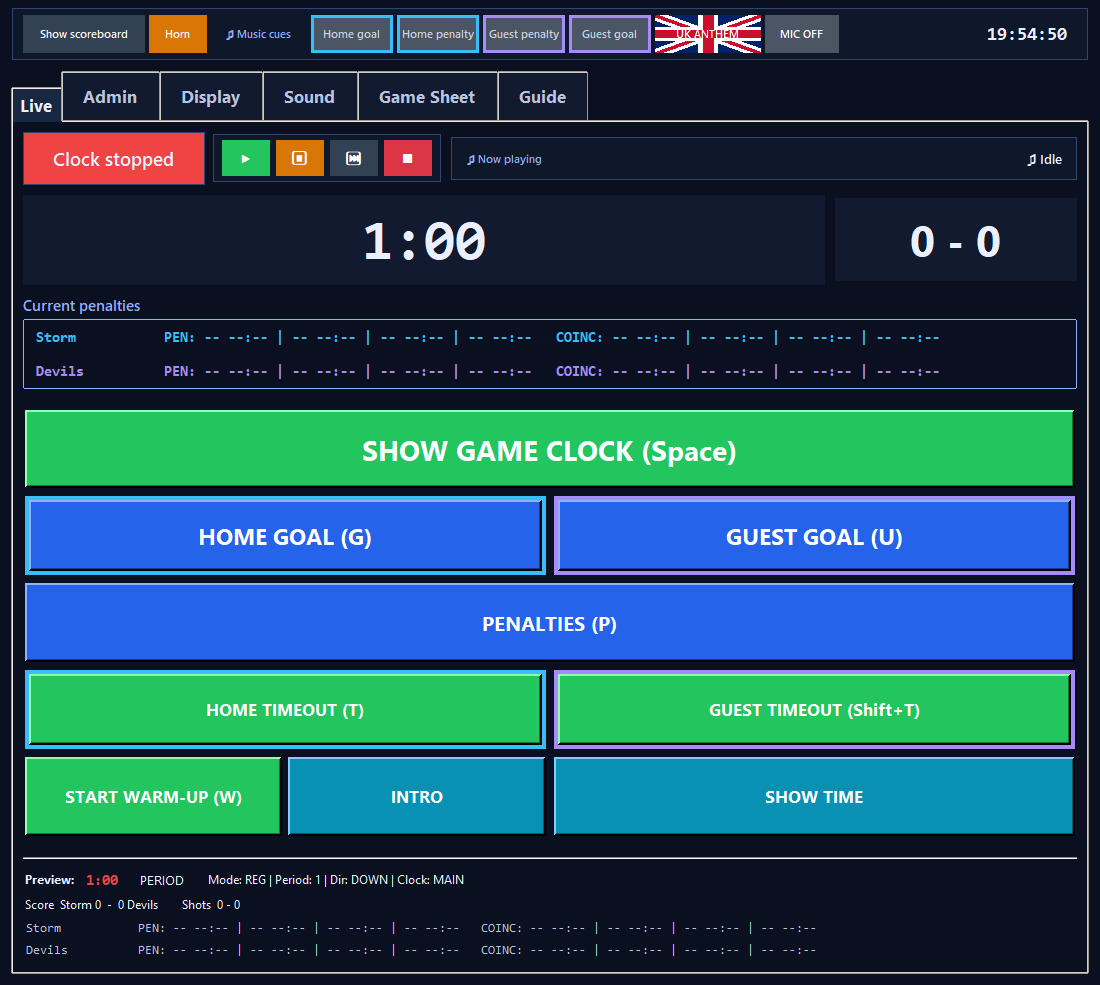
The match-day control surface for clock, goals, penalties, team timeouts, warm-up, current time and live music transport. The operator layout automatically compacts its tabs/cards on smaller displays and in a maximised 1080p work area, while the LIVE action rows use any spare viewport height so the buttons remain substantial instead of leaving an empty strip below them.
View screen
Live match controls
LIVE / Status
CLOCK RUNNING / CLOCK STOPPED
Shows whether the active scoreboard clock is currently running.
What happens
This is operator status only; it mirrors whether the active scoreboard clock is running or stopped. The status box has a fixed footprint so changing between running, stopped and game-ended states does not move adjacent controls.
View screen
Live match controls
LIVE / Music
Now Playing status
Shows the current music title/category/state so the operator can see whether music is idle, playing, paused or fading.
View screen
Live match controls
Resume Audio
Resumes whichever operator audio is currently paused: normal music, the national anthem or the horn.
Steps
- Press the green play triangle.
- A paused anthem resumes from the same point and keeps its remaining duration; a paused horn resumes the same horn blast.
- If neither is paused, normal music resume behaviour applies.
View screen
Live match controls
Pause Audio
Pauses the currently active normal music, national anthem or horn without losing its playback position.
Steps
- Press the orange pause button.
- Anthem and horn keep their audio ownership while paused, so no other automatic music starts underneath them.
View screen
Live match controls
Skip Song
Immediately stops the current song and starts another track from the same active music category/mode when possible.
Steps
- Press the ⏭ button once in the LIVE music transport strip.
- If more than one eligible song exists, RinkScore explicitly excludes the current song from the replacement choice.
Related: Next
Stop Audio
Stops the currently active normal music, national anthem or horn from the LIVE screen.
Steps
- Press the red stop button.
- An anthem is fully reset immediately so the flag button can start it again with one press.
- A horn stops immediately, then keeps the normal two-second post-horn silence before interrupted music can resume.
View screen
Live match controls
LIVE / Clock
SHOW / START / RESUME / STOP CLOCK
Uses a safe two-stage start before the first puck drop, then becomes the normal game-clock transport.
Steps
- On a fresh Pre-Match screen press SHOW GAME CLOCK, or Space once, to reveal the game scoreboard while keeping the clock stopped.
- Press START GAME CLOCK at puck drop.
- After play has started, use RESUME CLOCK and STOP CLOCK for normal stoppages.
What happens
SHOW GAME CLOCK changes presentation only. START / RESUME runs the MAIN clock and eligible penalty clocks.
Related: Automatic period progression, Penalty queueing and countdown
View screen
Live match controls
LIVE / Events
Home goal
Adds one to the Home score and triggers the Home goal manual music override when configured.
Steps
- Use while the MAIN game clock is stopped, or during an intermission.
- A brief 150 ms pressed colour/3D change gives visual feedback for mouse or G-key activation.
- The confirmation popup uses the same blue action colour as the Home goal button; the cyan team outline identifies it as Home.
- Correct an accidental score with ADMIN > Score/Shots.
- Home controls use a cyan team outline and Guest controls use a violet outline throughout the operator UI.
What happens
Home score increases by one. If Home had a genuine numerical power play immediately before the goal, one eligible Guest penalty segment may be cancelled.
When to use itGreyed out while the MAIN game clock is running and throughout Warm-up, including paused Warm-up. Available whenever MAIN is stopped and during Intermission, including while the break countdown is running.
Related: Power-play goal cancellation, Home Score +/-
View screen
Live match controls
Guest goal
Adds one to the Guest score and triggers the Guest goal manual music override when configured.
Steps
- Use while the MAIN game clock is stopped, or during an intermission.
- A brief 150 ms pressed colour/3D change gives visual feedback for mouse or U-key activation.
- The confirmation popup uses the same blue action colour as the Guest goal button; the violet team outline identifies it as Guest.
- Correct an accidental score with ADMIN > Score/Shots.
What happens
Guest score increases by one. If Guest had a genuine numerical power play immediately before the goal, one eligible Home penalty segment may be cancelled.
When to use itGreyed out while the MAIN game clock is running and throughout Warm-up, including paused Warm-up. Available whenever MAIN is stopped and during Intermission, including while the break countdown is running.
Related: Power-play goal cancellation, Guest Score +/-
View screen
Live match controls
PENALTIES
Opens ADMIN > Penalties for entering or correcting penalties.
Steps
- Use with the MAIN game clock stopped, or during an intermission.
- Press PENALTIES, choose Home or Guest, then use a penalty slot.
- The button gives brief pressed colour/3D visual feedback, including when P is used.
- Any LIVE warning from this button uses the same amber/orange action colour.
When to use itGreyed out while the MAIN game clock is running and throughout Warm-up, including paused Warm-up. Available whenever MAIN is stopped and during Intermission, including while the break countdown is running.
Related: Add/Update
View screen
Live match controls
LIVE / Timeout
Home timeout
Starts Home's one-use 30-second timeout.
Steps
- Stop the scoreboard clock, ensure Warm-up is not active, then press Home timeout.
- A brief pressed colour/3D change gives visual feedback for the button or timeout hotkey, and confirmations or warnings inherit that timeout button's action colour.
What happens
The scoreboard switches to TIMEOUT, counts from 0:30 and may start Timeout music if enabled.
When to use itAvailable only from a stopped game context when that team has not already used its timeout. The control is disabled while the scoreboard clock is running, throughout Warm-up even if Warm-up is paused, while another timeout is active, or while Current Time is displayed.
Related: 30-second timeout calculation, Timeout automatic enable
View screen
Live match controls
Guest timeout
Starts Guest's one-use 30-second timeout.
Steps
- Stop the scoreboard clock, ensure Warm-up is not active, then press Guest timeout.
- A brief pressed colour/3D change gives visual feedback for the button or timeout hotkey, and confirmations or warnings inherit that timeout button's action colour.
What happens
The scoreboard switches to TIMEOUT, counts from 0:30 and may start Timeout music if enabled.
When to use itAvailable only from a stopped game context when that team has not already used its timeout. The control is disabled while the scoreboard clock is running, throughout Warm-up even if Warm-up is paused, while another timeout is active, or while Current Time is displayed.
Related: 30-second timeout calculation, Timeout automatic enable
View screen
Live match controls
LIVE / Warm-up
START WARM-UP
Starts Warm-up after choosing Standard Scoreboard or Game Sheet Mode.
Steps
- Press START WARM-UP.
- Choose the match mode.
- Warm-up starts immediately; Cancel leaves the current state unchanged.
What happens
The public display shows Warm-up timing without a period number. If Auto intermission after warm-up is ON, Warm-up flows into PRE-PERIOD 1 INTERMISSION; End intermission then prepares Period 1 stopped.
If it is OFF, Warm-up prepares Period 1 stopped directly.
Related: Warm-up length, Auto intermission after warm-up, Standard Scoreboard vs Game Sheet Mode, Warm-up automatic enable
View screen
Live match controls
LIVE / Clock
SHOW TIME
Temporarily shows the PC's current local time without changing the stored game clock.
Steps
- Stop the active clock and press SHOW TIME.
- The button gives brief pressed colour/3D visual feedback before the confirmation prompt.
- The confirmation question/OK action and any LIVE warning use the same blue action colour as SHOW TIME.
- Leave Current Time using the normal clock controls/state change.
What happens
During GAME it replaces the visible game clock. On Pre-Match and Post-Match it overlays a CURRENT TIME panel while preserving the underlying scene.
When to use itGreyed out while a scoreboard clock is running and throughout Warm-up, including paused Warm-up. This prevents Current Time from interrupting an active timing context.
Saved settingsNot saved between launches.
More information
State changed
Switches the active timing context to CURRENT TIME while preserving the stored game values and the underlying Pre-Match/Post-Match scene.
Related: Current Time on GAME, Pre-Match and Post-Match
View screen
Live match controls
LIVE / Penalties
Current penalties
Shows operator-readable Home and Guest penalty queue summaries on LIVE.
What happens
Normal and coincidental queue summaries mirror authoritative model state; they do not create or edit penalties.
View screen
Live match controls
LIVE / Preview
Bottom status preview
Mirrors active clock, mode, period, score, shots and penalty queues at the bottom of control workspaces.
View screen
Live match controls
LIVE
INTRO / STOP INTRO
Runs or immediately stops the player-introduction presentation without allowing a match clock to run invisibly underneath it.
Steps
- Stop the active clock, press INTRO beside Start Warm-up and confirm.
- RinkScore plays the enabled DISPLAY > Intro items once in their saved order and starts the existing Music > Intro playlist.
- While it is running the same LIVE button changes to red STOP INTRO; press it again to stop immediately.
- SHOW GAME CLOCK / START / RESUME hands presentation priority back to the scoreboard before changing the clock.
What happens
The public scoreboard shows only the Intro media; non-filling media gets a blurred/dimmed background derived from itself. SHOW GAME CLOCK stops Intro and reveals the stopped 20:00 game clock.
A newly requested intermission is deferred until Intro ends, then starts from its full configured duration.
When to use itStarting is disabled while an active clock is running. STOP INTRO remains available while the Intro Library is active.
Related: Intro Library, Intro PLAY / STOP, Intermission advertising
Header
National Anthem
Country-aware flag button for ceremonial anthem playback.
Steps
- The button follows the selection in ADMIN > Extras > National Anthem: Union Jack / GOD SAVE THE KING, Canadian flag / O CANADA, or US flag / STAR-SPANGLED BANNER (US ANTHEM in compact mode).
- Press it and confirm the named anthem to start playback.
- While active the same flag button changes to STOP ANTHEM; press it again to stop immediately without another confirmation.
- LIVE Orange pauses the anthem, Green resumes it and Red also stops it.
What happens
Temporarily interrupts current arena music and plays the selected anthem once. Pause preserves the exact remaining anthem time.
Natural completion, STOP ANTHEM or LIVE Red all use the normal music hand-back, after which the interrupted track resumes from its saved position when Music and the match context still allow it.
Related: National Anthem
View screen
Live match controls