DISPLAY
DISPLAY workspace
Team branding, the shared Media Library, Pre-Match, player Intro, scoreboard themes, intermission advertising and Post-Match configuration. The tab order starts Teams & Branding → Media Library → Pre-Match; Post-Match remains the final DISPLAY tab.
DISPLAY is locked while the main clock is running.
DISPLAY / Media Library
Media Library overview
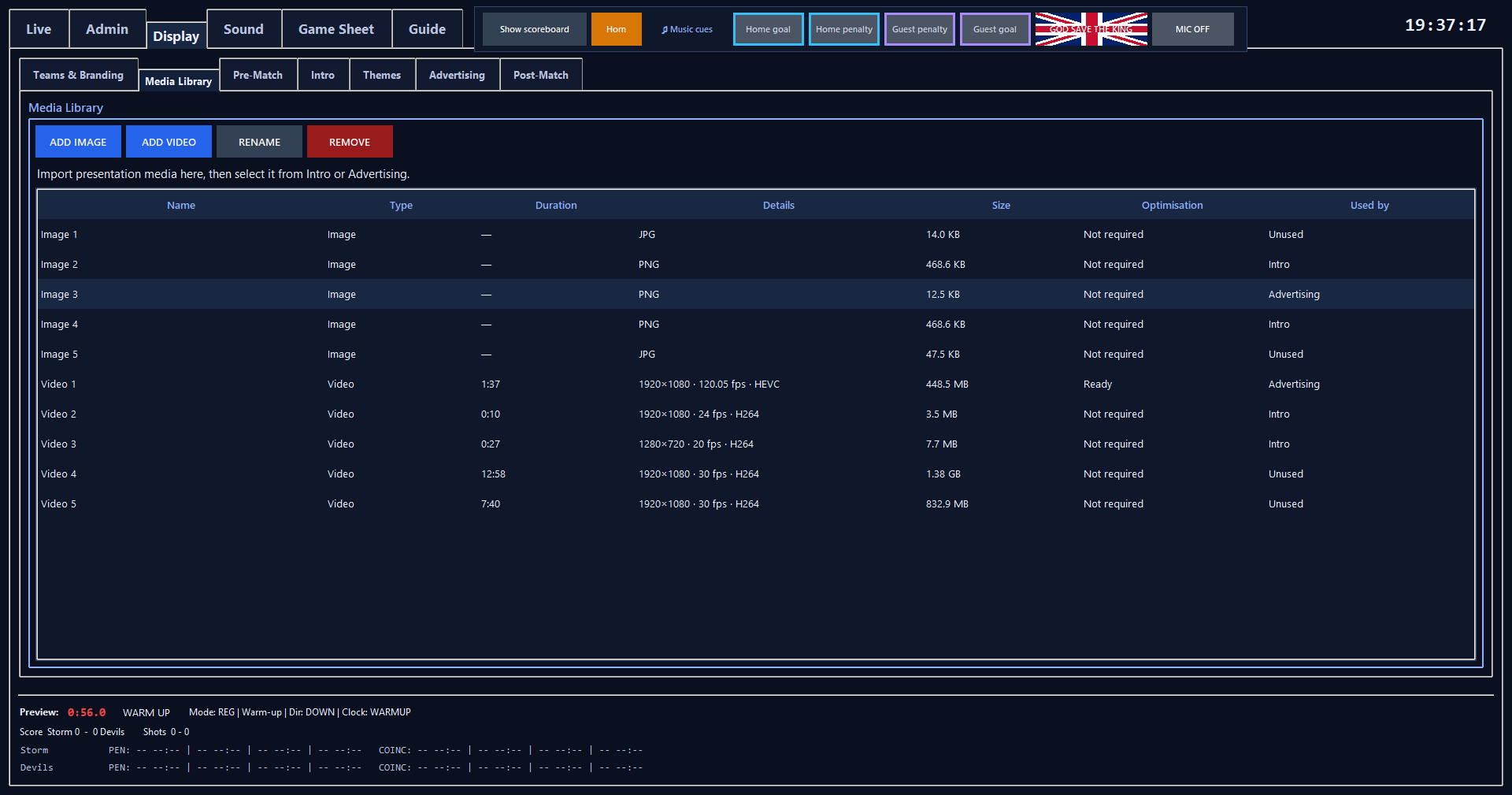
The shared Media Library is the single physical store for images and videos used by Intro and Advertising.
Steps
- Open DISPLAY > Media Library, immediately after Teams & Branding.
- The management table shows Name, Type, Duration, Details, Size, Optimisation and Used by.
- There is deliberately no image/video preview panel on this page.
Saved settingsAssets and source metadata are stored in media_library.json; managed originals live under the shared RinkScore Media\Originals folder and derived video/audio caches under Media\Cache.
View screen
Display media library
ADD IMAGE / ADD VIDEO
Imports presentation media once into the shared Media Library.
Steps
- Choose ADD IMAGE or ADD VIDEO, select a supported file and wait for the import status.
- Video metadata is validated safely; expensive video optimisation is scheduled in the background without replacing the original source.
- If RinkScore closes during the managed copy, the partial .tmp file is discarded on the next launch and you select the source again; the file copy does not resume byte-for-byte.
Saved settingsA successful new import creates one managed original and one MediaAsset record. The original file you selected is not modified.
View screen
Display media library
Duplicate media
Prevents the same physical media bytes being stored twice.
Steps
If a selected file has the same SHA-256 fingerprint as an existing Media Library asset, RinkScore selects/reuses the existing item and reports that it is already in the library, even when the source filename is different.
What happens
No second managed original or second optimisation cache is created.
View screen
Display media library
Used by
Shows whether each shared asset is referenced by Intro, Advertising, both, or neither.
Steps
- Use the Used by column before removing media.
- Intro and Advertising can reference the same asset while retaining completely independent order, duration, audio and scheduling settings.
View screen
Display media library
REMOVE
Removes an unreferenced asset and its shared derived caches safely.
Steps
- Select an unused row and choose REMOVE.
- If Intro or Advertising still references the media, RinkScore refuses deletion and identifies the usages that must be removed first; references are never cascade-deleted.
- Once unreferenced and confirmed, deletion removes the original media file from disk plus its RinkScore-generated video/audio cache files.
Saved settingsOnce confirmed and unreferenced, the MediaAsset record, managed original and derived video/audio caches are removed together with atomic library persistence.
View screen
Display media library
Legacy media / re-import
Explains the clean manual re-import process for old Intro and Advertising media.
Steps
- RinkScore does not migrate files from the old Intro\Media or Advertising\Media folders.
- On startup it permanently removes obsolete legacy usage rows that have no media_id, so old Needs Media rows do not keep returning.
- Re-import only the media you still want through Media Library, then add it again to Intro or Advertising.
What happens
Only blank-media_id legacy usages are purged. A modern usage with a non-empty media_id is retained even if its Media Library asset is unexpectedly unavailable, so a genuine broken reference remains visible for diagnosis.
View screen
Display media library
DISPLAY / Intro
Intro Library
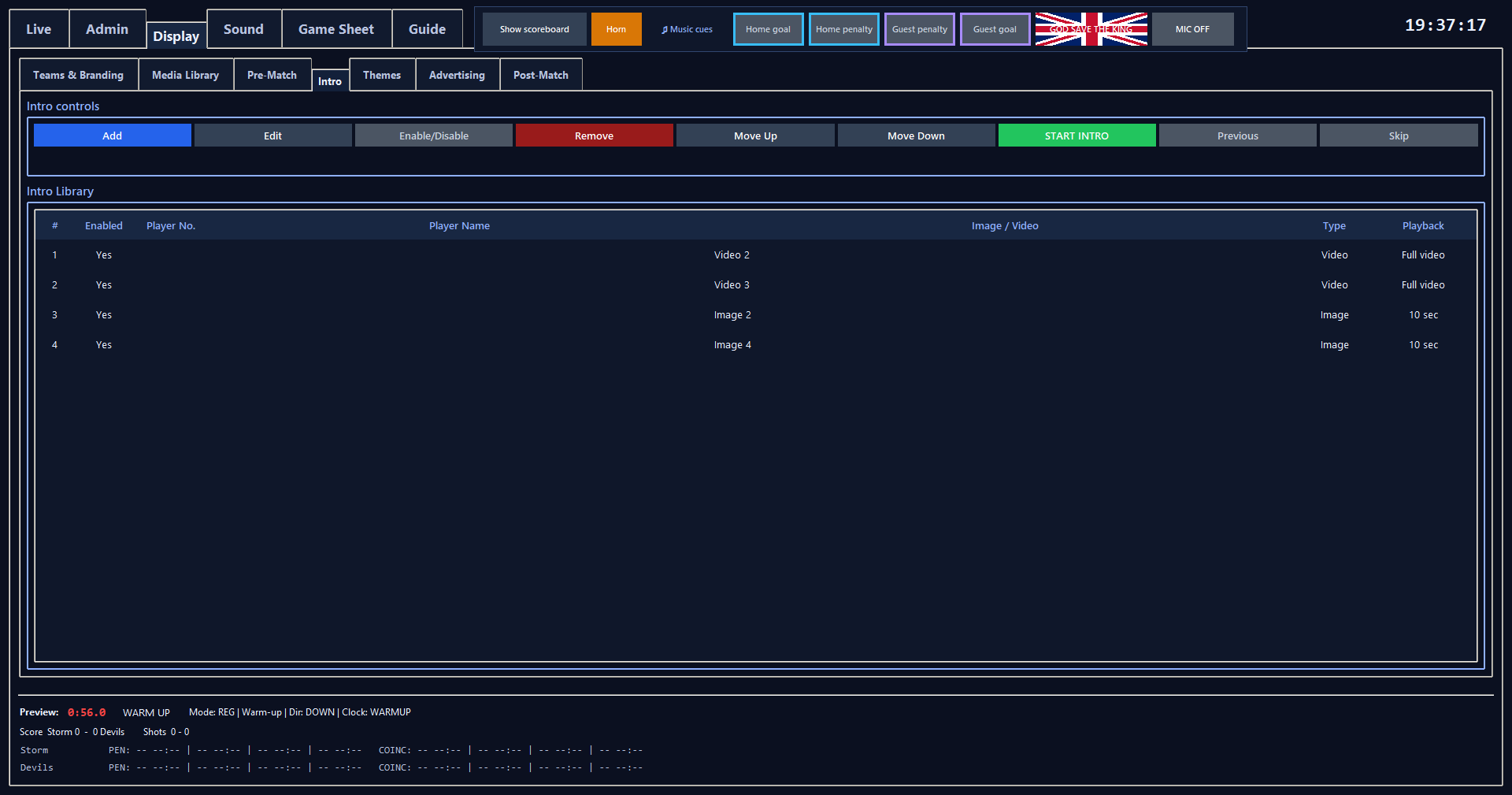
Maintains the ordered Media Library references used to introduce players onto the ice.
Steps
- Use Add to select an existing shared image/video from Media Library.
- To replace media, delete the existing usage and add it again from Media Library.
- Edit changes only that Intro usage's duration, video audio, Player No. and Player Name.
- Enable/Disable and Move Up / Move Down remain usage-specific; START INTRO / STOP INTRO controls presentation playback; Previous goes back one item and Skip advances immediately.
What happens
Enabled assigned items play once from top to bottom. Player details stay in the catalogue only and are never rendered publicly.
Removing an Intro row removes only the Intro reference; it does not delete the shared Media Library asset. Unassigned/missing rows are visibly marked and skipped safely.
Saved settingsThe Intro usage list is saved separately while its physical image/video files are owned by the shared Media Library.
Related: Media Library overview, Legacy media / re-import, INTRO / STOP INTRO
View screen
Intro library
DISPLAY / Teams & Branding
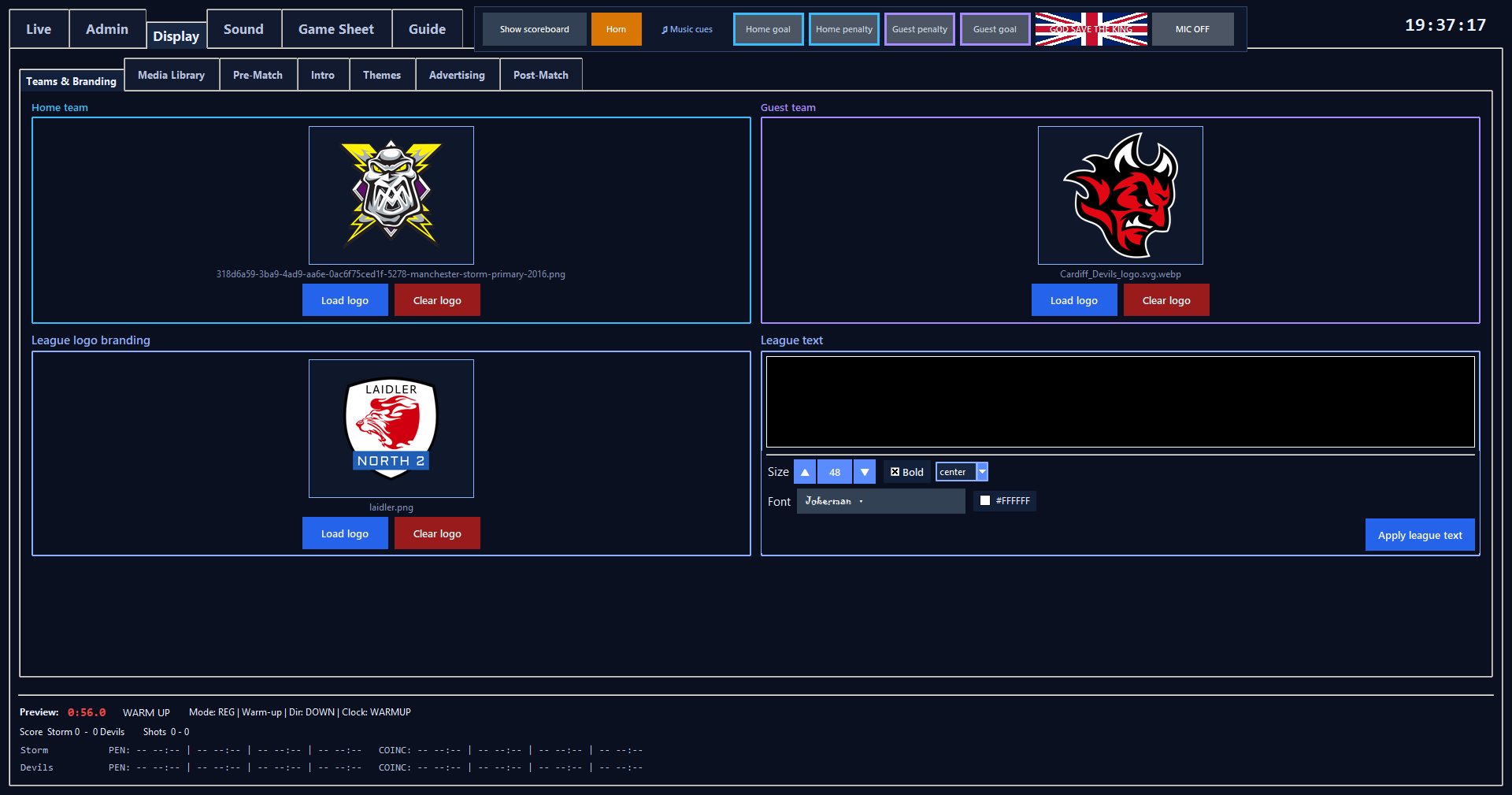
Home logo
Loads or clears the Home logo used by scoreboard scenes.
Steps
- Use Load to choose an image file and Clear to remove the stored path/image.
- Home and Guest logo previews update immediately after either action.
Saved settingsLogo paths are included in scoreboard settings when settings are saved.
View app screen
Teams and Branding tab
Guest logo
Loads or clears the Guest logo used by scoreboard scenes.
Steps
- Use Load to choose an image file and Clear to remove the stored path/image.
- Home and Guest logo previews update immediately after either action.
Saved settingsLogo paths are included in scoreboard settings when settings are saved.
league logo
Loads or clears the league logo used by scoreboard scenes.
Steps
- Use Load to choose an image file and Clear to remove the stored path/image.
- Home and Guest logo previews update immediately after either action.
Saved settingsLogo paths are included in scoreboard settings when settings are saved.
Team logo preview
Shows the currently loaded Home and Guest team logos in the upper two quadrants of the equal 2×2 Teams & Branding layout so the operator can verify the selected images before displaying them.
Steps
- Load a Home or Guest logo and its preview updates immediately.
- Clear removes the preview and shows No logo loaded.
- If a saved logo path is restored when the app starts, the preview is restored automatically; an unavailable file is reported safely.
Saved settingsThe preview itself is not separately saved; it is rebuilt from the saved Home/Guest logo path.
League Logo Branding
Shows the currently loaded league logo in the lower-left quadrant of the equal 2×2 Teams & Branding layout, matching the Home/Guest logo style. League Text is intentionally not duplicated beneath the logo; it remains available on Pre-Match, Post-Match and the live scoreboard.
Steps
- The League Logo Branding quadrant uses the same blue outlined artwork box, background, centred file-name line and Load/Clear button layout as Home/Guest.
- Edit League Text separately in the lower-right quadrant and press Apply league text when required.
Saved settingsThe logo panel itself is not separately saved; it is rebuilt from the saved league-logo path. League Text and its formatting remain saved independently.
League text
Two-line branding text shown on Pre-Match and Post-Match screens and, when the game scene is active, in the live centre column.
Steps
- Use the two-line League Text editor on the right of League Logo Branding.
- The field is limited to two explicit lines, including pasted text.
- League Text remains a plain field-wide editor using one consistent font, size, bold setting and colour across the complete field; per-character rich tags are removed.
- Display Formatting and Apply league text remain anchored at the bottom.
- There is no duplicate text preview beneath the League Logo Branding panel.
Saved settingsText and formatting are saved in scoreboard settings.
League branding during the game
Shows the configured League Logo and League Text on the live scoreboard in all themes, directly under the PERIOD number and above SHOTS ON GOAL.
What happens
Logo and text stay inside the centre corridor, so Home/Guest penalty columns are not covered. A power play or numerical-strength line uses a reserved row below the branding and above SHOTS ON GOAL.
DISPLAY / Pre-Match
Warm-up start time
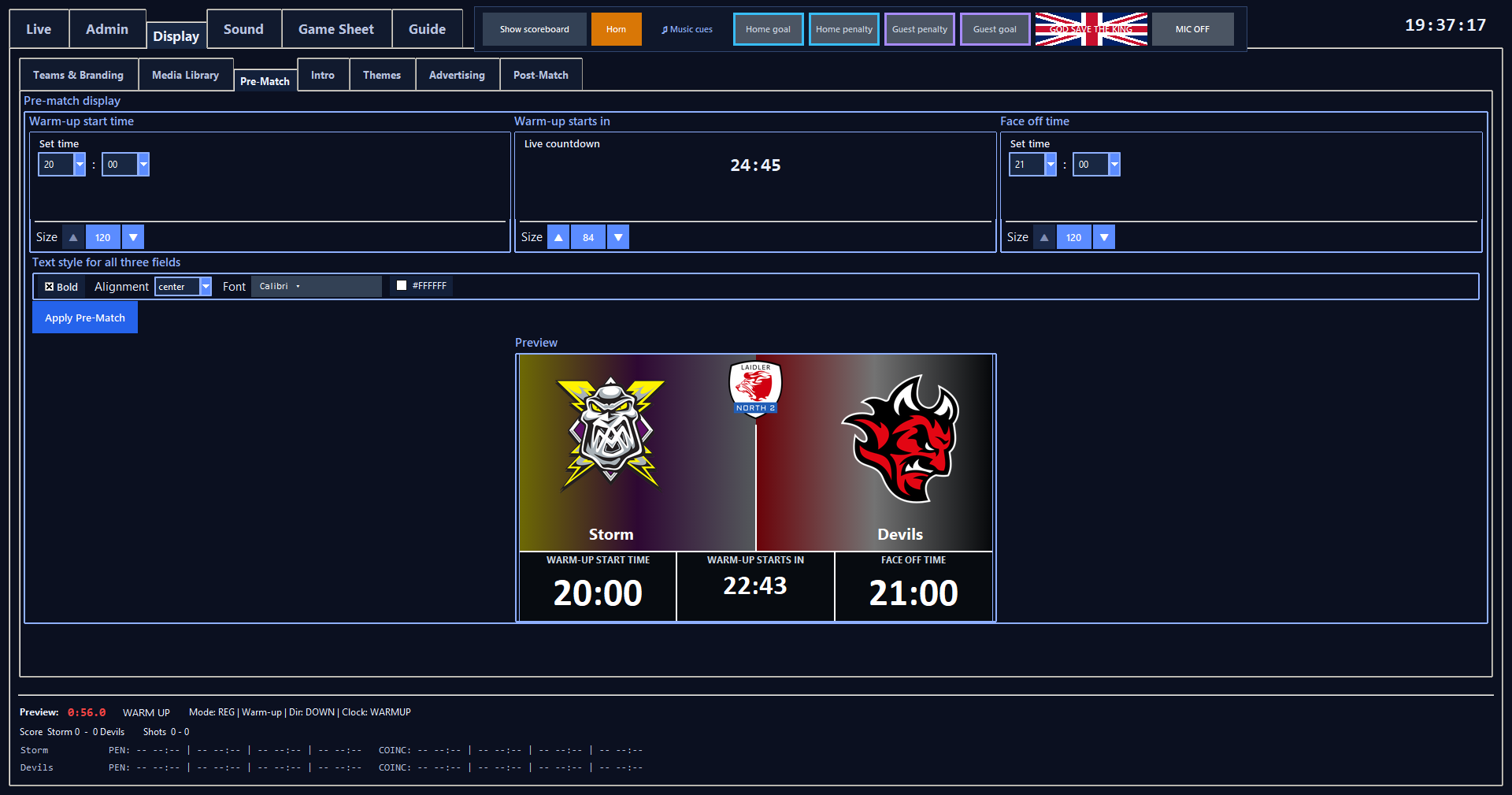
Sets the warm-up start time shown in the left-hand information box.
Steps
- Use SET TIME to choose the warm-up start hour and minute.
- The centre countdown is calculated automatically from this value.
Saved settingsSaved in scoreboard settings after Apply match details.
Warm-up starts in
Shows a live countdown to the configured warm-up start time in the centre information box.
Steps
- There is no separate countdown value to enter.
- Set Warm-up start time on the left; RinkScore shows WARM-UP STARTS IN as the centre heading and the countdown value beneath it on the same value row as the left and right times.
- The countdown keeps its own Size control.
What happens
Counts down to 00:00 and refreshes automatically on the Pre-Match scoreboard and embedded preview.
Face Off Time
Sets the actual Pre-Match face-off time shown in the right-hand information box.
Steps
- Use SET TIME to choose the hour and minute.
- Match values are edited here; DISPLAY FORMATTING changes appearance only.
- The DISPLAY FORMATTING — appearance only section beneath it changes size, boldness, alignment, font and colour without changing the selected time.
Saved settingsSaved in scoreboard settings after Apply match details.
View app screen
Pre-Match tab
DISPLAY / Post-Match
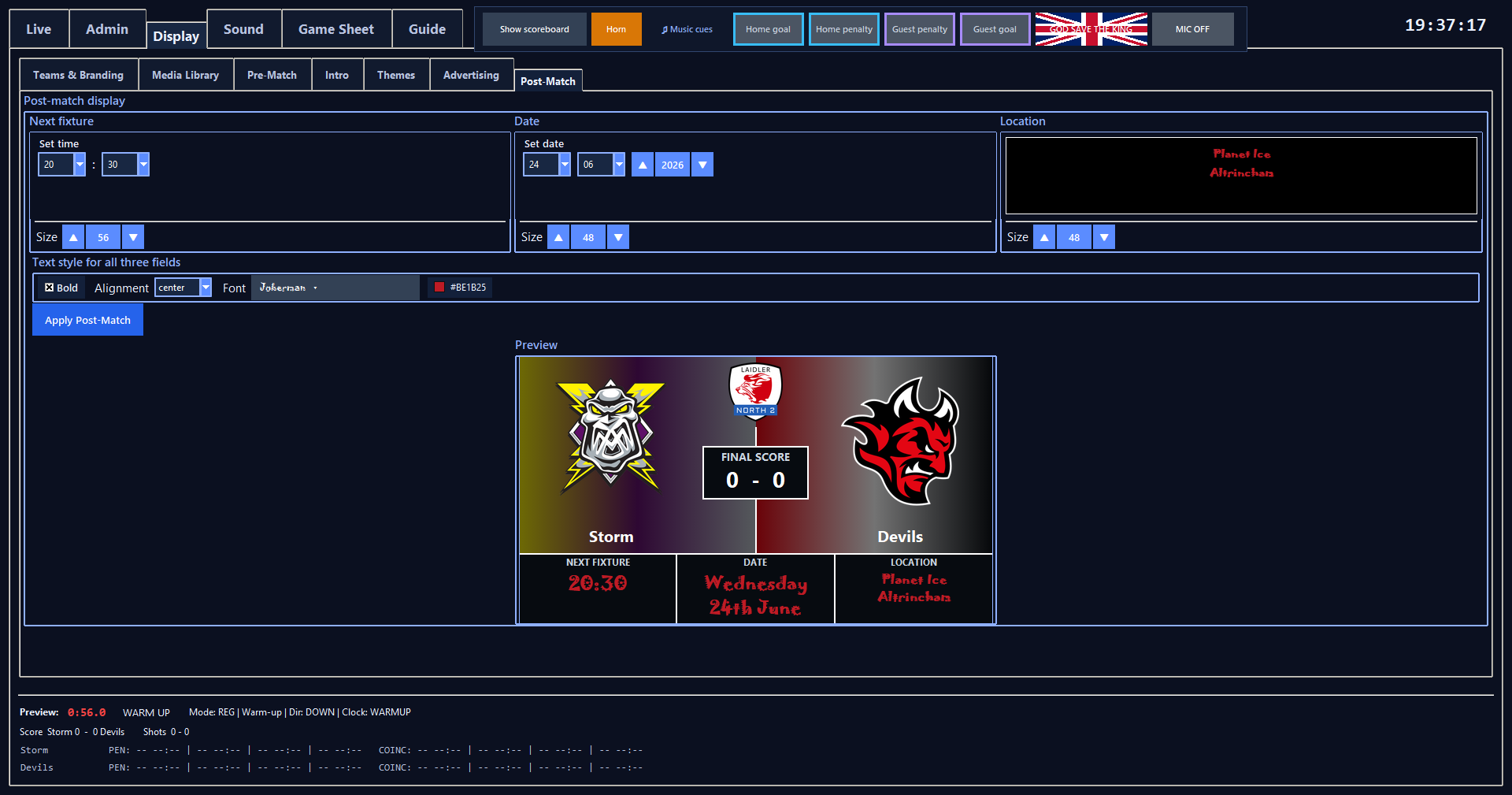
Next Fixture
Sets the time of the next fixture shown beneath the final score.
Steps
- Use SET TIME in NEXT FIXTURE to choose the actual next-fixture hour and minute.
- Next-fixture values are edited here; DISPLAY FORMATTING changes appearance only.
- The formatting section below changes only its appearance.
Saved settingsSaved in scoreboard settings after Apply post-match details.
View app screen
Post-Match tab
Post-Match Date
Sets the date of the next fixture shown on the Post-Match scene.
Steps
- Use SET DATE to choose day, month and year.
- DISPLAY FORMATTING below changes only the appearance of the selected date.
Saved settingsSaved in scoreboard settings.
Post-Match Location
Next-fixture location text for the Post-Match scene.
Saved settingsSaved in scoreboard settings.
DISPLAY / Text formatting
Size
Sets the selected scoreboard field's live-render font size.
Bold
Turns bold rendering on/off for the selected display text field. The editor preview mirrors the boldness.
Alignment
Chooses left, centre or right alignment for the selected display field and editor preview.
Font
Opens a searchable visual font picker instead of a very long drop-down.
Steps
- Choose from familiar Recommended fonts shown in their own typeface, or search all installed fonts by name.
- The preview uses the actual text from the field being edited: Pre/Post previews show their entered time, date and location, while League Text shows only the text in the League Text box.
Colour
Opens the RinkScore colour picker with a saturation/brightness panel, hue bar, Current/New swatches, Hex and RGB values, recent colours and Apply/Cancel controls. The selected value is stored as an exact hex colour.
Eyedropper
Samples one exact desktop pixel colour for the selected display text field.
Steps
- Open Colour, then choose Pick from screen in the colour picker.
- The colour picker remains visible while you move the pointer around the desktop; its New swatch, Hex and RGB values update live to the colour under the eyedropper.
- A magnified preview follows the pointer; click to select or press Esc to cancel.
DISPLAY / Pre-Match
Apply match details
Commits Warm-up Start Time, the countdown appearance and Face Off Time to the model and saved settings.
What happens
The Pre-Match renderer updates immediately. Overflow feedback remains visible if selected text/size will not fit the information band.
Embedded preview
Shows the configured Pre-Match scene inside DISPLAY without changing the public scoreboard or match phase.
What happens
This preview is isolated from live match state, clock operation and music context.
DISPLAY / Post-Match
Apply post-match details
Commits Next Fixture, Date and Location plus formatting to the model and saved settings.
Embedded preview
Shows the configured Post-Match scene inside DISPLAY without ending the game or changing the public scoreboard. The editor and preview are kept vertically compact so the preview stays visible without unnecessary scrolling on shorter operator windows.
What happens
Final score is read from the current model snapshot only; no Post-Match lock or music context is activated.
DISPLAY / Themes
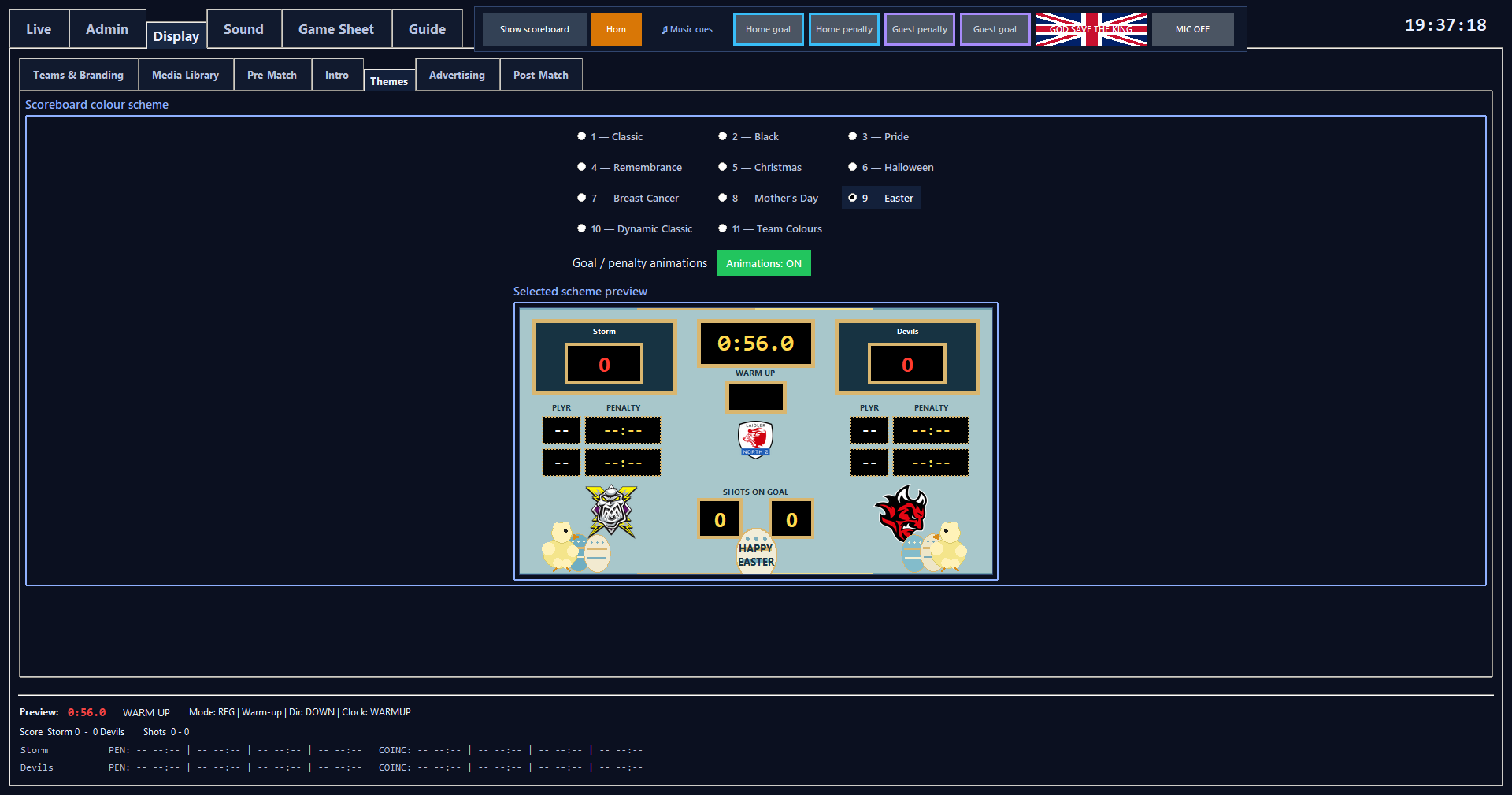
Scoreboard colour scheme
Selects one of the eleven scoreboard theme schemes.
What happens
Classic keeps its normal high-contrast scoreboard colours but now uses a light-blue outline around the large Home and Guest team-name panels; other themes retain their own authored border colours.
Saved settingsSelected scheme is saved in scoreboard settings.
View app screen
Theme selector and preview
Goal / penalty animations
Controls event animation overlays for all eleven themes from one toggle under the scheme selector.
Steps
- Press Animations: ON/OFF beneath the theme choices.
- ON allows goal and non-coincidental penalty animations in every scheme; OFF keeps the selected scheme static while scores and penalties still update normally.
What happens
Goals use the scoring team's frame pulse/score-pop treatment; newly added non-coincidental penalties use the short inward amber/red sweep on the penalised side. Coincidental penalties remain non-animated because they are not displayed on the scoreboard.
Saved settingsThe animation preference is saved in scoreboard settings.
Related: Team Colours, Selected scheme preview
Easter — Chicks & Eggs
Uses a pale robin-egg-blue outer field inspired by painted Easter eggs, while keeping match information on true-black panels with a red score and yellow clock.
What happens
Small yellow chicks and painted eggs decorate the spare corners. The seasonal colours stay in the decoration rather than the critical score/clock data.
Goal and non-coincidental penalty animations use blue/gold accents and still follow the global Animations ON/OFF setting.
Related: Goal / penalty animations, Selected scheme preview
Team Colours
Builds a coordinated live scoreboard from three colours automatically extracted from each Home/Guest logo.
What happens
Each side uses its own primary, secondary and softened tertiary colour around a dark centre corridor. Team-colour borders/penalty accents are applied automatically.
Goal and penalty event animations use the same global Animations ON/OFF control as all other schemes.
Related: Goal / penalty animations, Selected scheme preview
Selected scheme preview
Shows the selected theme using the same DaktronicsStyleDisplay scene renderer as the live GAME scoreboard. The preview now sits directly below Scoreboard colour scheme and matches the 600 x 338 Pre-Match preview footprint.
DISPLAY / Advertising
Intermission advertising
Configures Media Library references that can automatically take over the public display during intermissions while the score, game clock and intermission status remain visible in the bottom banner.
Steps
- Open DISPLAY > Advertising while the game clock is stopped.
- Use Add to create an Advertising usage from an existing shared image/video.
- To replace media, Remove the old usage and add the replacement from Media Library, then edit its settings and set order/schedule in the Advertising Library.
- The large master control reads ADVERTISING ENABLED in green or ADVERTISING DISABLED in neutral slate; while the current break is frozen it reads ADVERTISING PAUSED THIS INTERMISSION in yellow.
- START ADVERTS manually starts/resumes eligible adverts during an intermission; Previous and Skip remain available while advertising is active.
When to use itAdvertising playback is automatic only in INTERMISSION/BREAK. DISPLAY configuration remains locked while the main game clock runs.
Saved settingsAdvertising usage/settings are stored separately in scoreboard_advertising.json. Physical presentation media is owned once by media_library.json and Media\Originals, with shared derived caches under Media\Cache.
Add
Creates an Advertising usage by referencing an image/video already stored in the shared Media Library.
Steps
- Import the physical file once in DISPLAY > Media Library.
- Then return to Advertising and press Add to select it.
- To replace an existing or legacy usage, remove that usage and add the required Media Library item again.
Saved settingsThe Advertising row stores its own settings in scoreboard_advertising.json while the shared physical source remains under %LOCALAPPDATA%\RinkScore\Media\Originals and is indexed by media_library.json.
Rotation
Controls where the playlist starts on each intermission.
Steps
Choose Restart each intermission to begin from the first eligible advert, or Continue rotation to begin from the next logical advert after the last one shown.
Saved settingsSaved in scoreboard_advertising.json.
Schedule and campaign dates
Limits an advert to specific intermission contexts and optional inclusive campaign dates.
Steps
- Edit an advert and select Any Intermission, After Period 1, After Period 2, Regulation-to-Overtime and/or Special/OT intermission.
- Active from and Active until use YYYY-MM-DD; blank means no limit.
Saved settingsSaved per advert in scoreboard_advertising.json.
Advert Message and scrolling text
Stores one formatted spectator Advert Message plus an optional independent scrolling ticker for each advert.
Steps
- In Edit Advertisement, enter the Advert Message.
- The editor starts at two visible lines and grows when you add explicit line breaks with Enter.
- Font, Size, Bold, Alignment and Colour apply consistently to the complete message; use Colour → Pick from screen to sample a colour.
- Scrolling text is independent: tick Enable scrolling text, enter the ticker copy and choose Slow, Normal or Fast.
What happens
The Advert Message is drawn over the advertising scene. The independent ticker scrolls above the permanent game-information banner; the banner remains visible throughout advertising.
Media Library reference and duration
Advertising uses a shared Media Library image/video while keeping independent advert playback settings.
Steps
- Use Add to create an Advertisement usage.
- To replace its media, remove the old usage and add the replacement from Media Library.
- Images use Image duration from 2–120 seconds.
- Video durations are whole seconds; choose Full video or Custom duration and choose Use video audio or Mute video.
- Import physical files only from DISPLAY > Media Library.
Related: Media Library overview, Used by
Video audio
Selects whether an advertising/intermission video owns arena audio while it is displayed.
Steps
- New advertising videos default to Mute video.
- Muted advertising video does not take audio ownership, so eligible Intermission music can continue underneath it.
- Choose Use video audio only when the advert should suspend Intermission music and play its own audio.
- Advertising Video volume is the source level; MUSIC Master Volume is always applied on top as the final multiplier.
- Rotation and Video volume save automatically, and a Video volume change updates an active advert without restarting it.
Live advert controls
Provides immediate operator control from the Advertising Library while intermission advertising is active; there is no separate LIVE advertising strip.
Steps
- In the Advertising Library toolbar, START ADVERTS, Previous and Skip sit after Move Down.
- The active advert row is green; click that green row to freeze the current image or video frame for the rest of the current intermission.
- The large master button then reads ADVERTISING PAUSED THIS INTERMISSION in yellow.
- Use the master button to disable advertising immediately or re-enable it during the same break.
When to use itSTART ADVERTS is enabled during BREAK when Advertising is enabled but no advert is actively running. Previous and Skip are enabled only while an advert is active.
Scoreboard display window
Borderless secondary display
On a dedicated second monitor the scoreboard automatically fills the complete screen with no Windows title bar, border or taskbar strip. On a one-screen laptop it opens as a normal resizable 16:9 preview window so it cannot become unreachable.
Steps
- Press F11 (or F) in the scoreboard display window to toggle borderless mode on the monitor that currently contains the scoreboard; press Esc to return to a normal decorated window.
- F11 reads the real native Windows top-level rectangle before changing styles, then waits for that same monitor's native pixel rectangle to settle before revealing the scoreboard.
- This prevents mixed-DPI half-screen/cropped transitions and avoids leaving a blank wrapper window on the primary display.
- Use Show scoreboard in the control header whenever the display is hidden, minimised or covered.