RinkScore
Guides / ADMIN

ADMIN

Detailed clock, game, score/shots, penalty, horn, mode, settings and logging controls. ADMIN is locked while the main clock is running.

49 topics

ADMIN

ADMIN workspace

Detailed clock, game, score/shots, penalty, horn, mode, settings and diagnostics controls. ADMIN is locked while the main clock is running.

View screen
Clock and timing controls

ADMIN / Clock

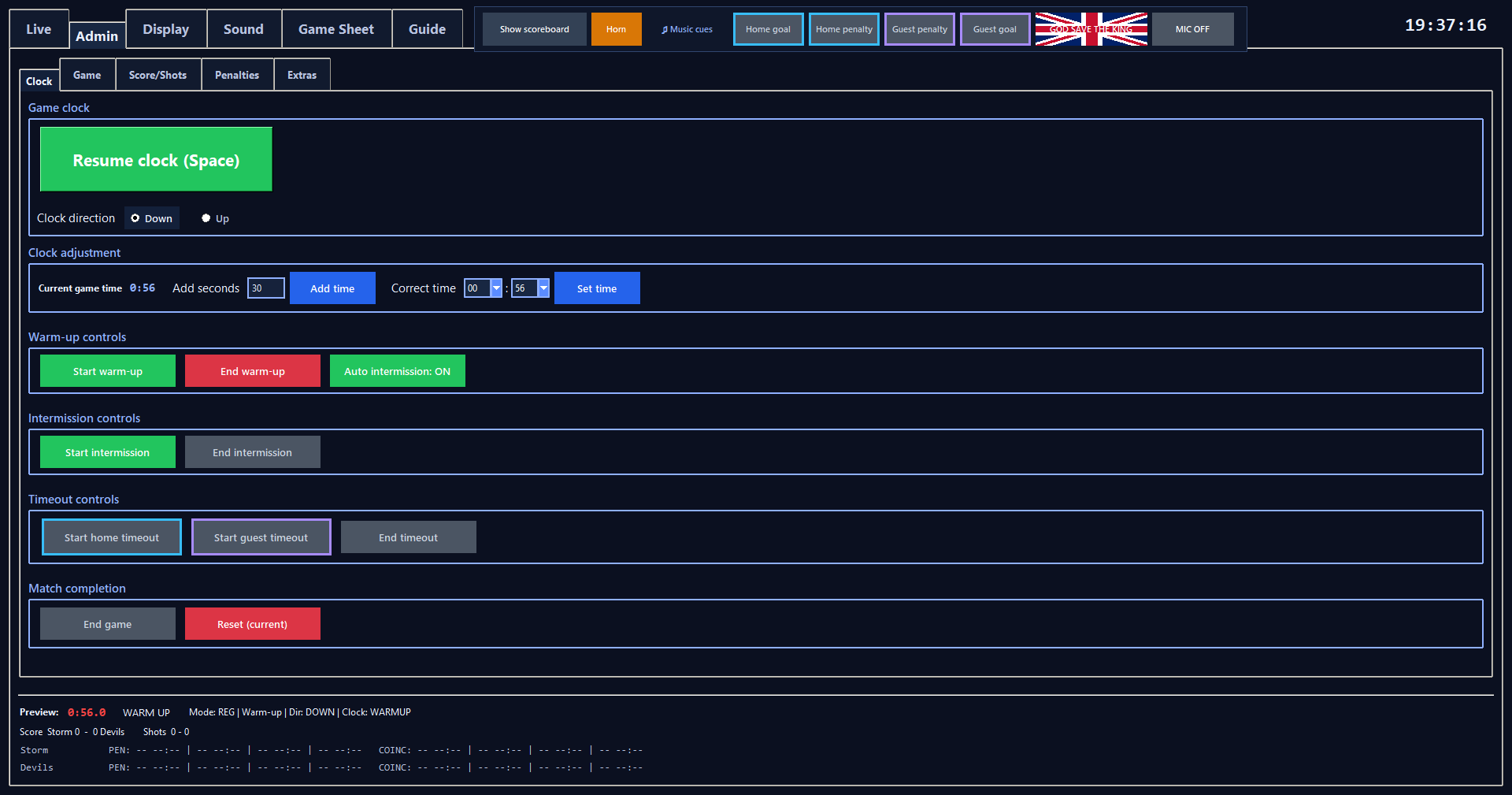
RESUME / PAUSE CLOCK

The ADMIN copy of the main start/pause control.

Steps

Use with the clock stopped; Space performs the same action.

What happens

Changes whether the active scoreboard clock is running or stopped without changing the selected timing context.

View screen
Clock and timing controls

Reset (current)

Returns the live match to a clean REG Period 1 start while keeping fixture setup and branding; from Post-Match it is the non-nuclear way to start again with the same setup.

Steps

  1. During a live-match recovery it stops the clock, returns to REG Period 1 at the full regulation start time, resets Home/Guest scores to 0, clears penalties and timeout usage, and preserves shots.
  2. From Post-Match it asks for confirmation, also resets shots to 0, returns the public display to Pre-Match and re-enables match controls.
  3. Team names, logos, league branding, pre/post-match setup, music and advertising configuration are preserved.
View screen
Clock and timing controls

Add seconds / Add time

Returns time lost when the clock was not stopped immediately on the referee whistle.

Steps

  1. Type the number of seconds to return, then press Add time.
  2. On a count-down game clock the display moves back up toward the period start; on a count-up game clock it moves backwards toward 00:00.
View screen
Clock and timing controls

Correct time / Set time

Sets the stopped active clock to the exact MM:SS shown by the official rink clock.

Steps

  1. The Current game time value tracks RinkScore automatically.
  2. Stop the clock, use the minutes and seconds selectors beside Correct time, then press Set time.
  3. Exact correction is capped at 20:00; shorter active clocks automatically use their lower maximum.
  4. The selectors initially mirror the current game time so a small correction normally needs only one value changed.
When to use it

Set time is disabled while a scoreboard clock is running, while Current Time is shown and for Shootout MAIN because shootout has no game clock.

END GAME

Stops match timing and switches the public scoreboard directly to Post-Match without resetting the game.

Steps

  1. Press END GAME after the match has started.
  2. Confirm the final score, period and current game time in the warning dialog.
  3. Choosing Yes stops the active clock and changes the public display to Post-Match; choosing No leaves the match unchanged.

What happens

Scores, shots, penalties, timeout-used flags and event history remain available for game-sheet generation and review. Post-Match is then a locked final state: Resume/Space, goals, penalties, time correction, timeouts, intermission controls and manual goal/penalty music cues remain disabled.

Reset (current) remains red as a deliberate reset/restart action, and Start warm-up is green as the deliberate override that resets to REG Period 1 and begins the next warm-up.

When to use it

Disabled on Pre-Match, Warm-up and once Post-Match is already active.

Clock direction

Selects count Down or Up for the displayed game clock behaviour supported by the model.

Saved settings

Saved in scoreboard settings.

View screen
Clock and timing controls

ADMIN / Game

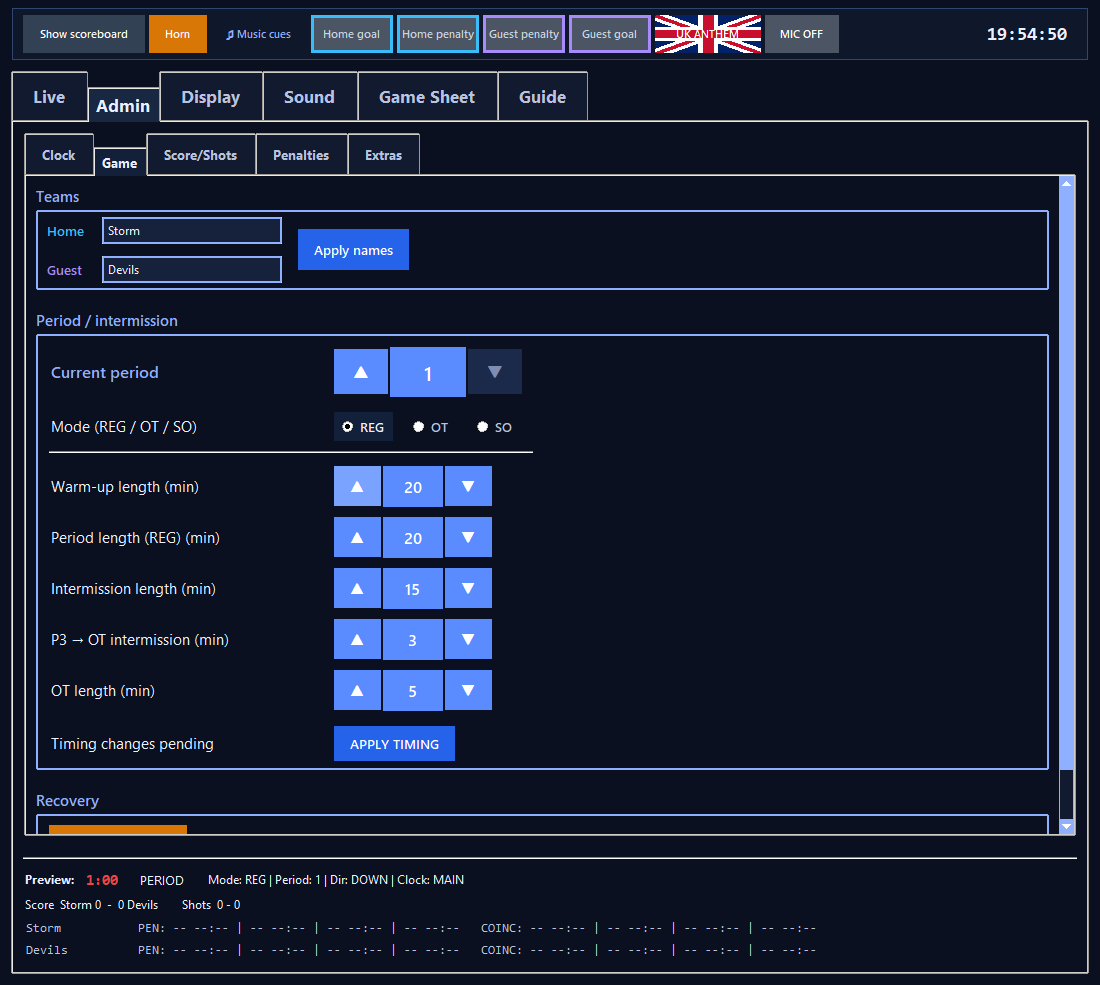
Warm-up length

Sets the warm-up duration in minutes before starting or resetting warm-up.

Steps

  1. Change Warm-up length in ADMIN > Game > Period / Intermission, then press the single APPLY TIMING button beneath the timing values.
  2. The Start / Pause / Reset / End warm-up buttons remain in ADMIN > Clock.
Saved settings

Saved immediately to scoreboard settings when APPLY TIMING is pressed.
View screen
Team and timing settings

ADMIN / Clock

Start warm-up

Starts a new warm-up after the operator chooses Standard Scoreboard or Game Sheet Mode.

Steps

  1. Every press presents the match-mode choice.
  2. Selecting a mode starts Warm-up immediately; there is no second confirmation.
  3. Cancel leaves the current state unchanged.

What happens

Warm-up music can start automatically when enabled. Game Sheet Mode creates/activates the new sheet; Standard Scoreboard starts without full match-sheet capture.

View screen
Clock and timing controls

End warm-up

Ends warm-up immediately. If Auto intermission is ON, the configured pre-Period 1 intermission starts straight away; if it is OFF, RinkScore prepares regulation Period 1 stopped.

View screen
Clock and timing controls

Auto intermission after warm-up

Controls whether Warm-up flows directly into PRE-PERIOD 1 INTERMISSION before the first puck drop.

Steps

  1. Press the button to switch Auto intermission ON or OFF.
  2. ON is shown in green; OFF uses the neutral button style.

What happens

When ON, Warm-up reaching 00:00 or pressing End warm-up starts PRE-PERIOD 1 INTERMISSION with Period still set to 1. While that break is active Start intermission is greyed and End intermission is enabled.

When the countdown ends or End intermission is pressed, RinkScore prepares Period 1 at its full configured time, stopped. If the configured intermission length is 0, Period 1 is prepared immediately.

Saved settings

The preference is saved immediately in scoreboard settings and is preserved by New Game.

Start intermission

Starts a manual intermission from a stopped regulation game state; in regulation Period 3 it becomes a protected End regulation action.

Steps

  1. In P1/P2, press Start intermission to begin the configured intermission.
  2. If PRE-PERIOD 1 INTERMISSION is already active after Warm-up, use End intermission instead; Start intermission is disabled.
  3. If Intro is active, a valid manual request is queued until Intro finishes or is stopped.
  4. In regulation Period 3, stop the game clock and press Start intermission; RinkScore asks for confirmation because this ends regulation.

What happens

P1/P2 start the configured break. P3 with a winner goes to Post-Match; P3 tied goes to the overtime intermission.

When to use it

Use with the main game clock stopped and no intermission already active. Auto intermission after warm-up does not require another Start intermission press.

View screen
Clock and timing controls

End intermission

Ends the current intermission immediately and prepares the correct next game state.

Steps

  1. During PRE-PERIOD 1 INTERMISSION, End intermission is enabled and prepares regulation Period 1 at its full configured time, stopped for puck drop.
  2. After P1/P2 it prepares the next regulation period stopped.
  3. After a tied P3 it prepares OT stopped; after a P3 winner it resolves to Post-Match.
When to use it

While an intermission is active, Start intermission is disabled and End intermission is the active control. Auto intermission after warm-up does not prevent End intermission from being used.

View screen
Clock and timing controls

End timeout

Ends the active timeout early and restores the previous clock state stopped.

View screen
Clock and timing controls

ADMIN / Game

Home team name

Edits the Home team name shown in scoreboard scenes and previews.

Saved settings

Saved in scoreboard settings after Apply names.

View screen
Team and timing settings

Guest team name

Edits the Guest team name shown in scoreboard scenes and previews.

Saved settings

Saved in scoreboard settings after Apply names.

View screen
Team and timing settings

Apply names

Commits the Home and Guest name text boxes to the live model and saved settings.

View screen
Team and timing settings

Period

Manually sets the current regulation period for recovery/correction. Only Period 1, 2 or 3 is accepted; values outside 1-3 are rejected.

Steps

  1. Use the blue segmented Current period control at the top of Period / Intermission: the left ▲ increases the value, the right ▼ decreases it, and the centre tile shows the selected period.
  2. Mode is shown immediately below and applies straight away.
  3. The five duration controls are aligned beneath it in match-flow order: Warm-up, Period, Intermission, P3 → OT, then OT.
  4. When Current period or any duration changes the panel shows Timing changes pending; press the single APPLY TIMING button directly beneath the timing values to apply and persist them together.
  5. Arrow buttons automatically disable at the valid minimum or maximum.
  6. Holding an arrow continuously changes the value, which is useful for larger timing adjustments.
  7. Overtime progression is automatic and is not entered here as Period 4.
View screen
Team and timing settings

Recover Game

Restores one of the two newest scoreboard-state recovery snapshots written within the last 2 hours.

Steps

  1. Open Recover Game.
  2. Review teams, score, mode/period, clock, shots, penalties, timeout usage and last-saved time.
  3. Select RECOVER GAME only after the snapshot matches the interrupted fixture.

What happens

Scoreboard state is restored with the active clock STOPPED so it can be checked against the rink clock.

Saved settings

Recovery snapshots are stored under %LOCALAPPDATA%\RinkScore\Recovery. They are separate from the one Game Sheet event record and from persistent scoreboard settings.

REG period length

Sets the regulation period length used when resetting/preparing regulation periods.

Steps

  1. Change the value, then press APPLY TIMING in the Period / Intermission panel.
  2. The button saves Current period plus Warm-up, Period, Intermission, P3 → OT and OT timing values together.
Saved settings

Saved immediately to scoreboard settings when APPLY TIMING is pressed.

View screen
Team and timing settings

P1/P2/P3 standard intermission length

Sets the standard regulation intermission value for Periods 1, 2 and 3.

Steps

Change the value, then press the single APPLY TIMING button for the Period / Intermission panel.

Saved settings

Saved immediately to scoreboard settings when APPLY TIMING is pressed.

View screen
Team and timing settings

P3 → OT intermission length

Sets the short intermission used only when regulation ends tied and overtime is being prepared.

Steps

Change the value, then press the single APPLY TIMING button for the Period / Intermission panel.

Saved settings

Saved immediately to scoreboard settings when APPLY TIMING is pressed.

ADMIN / Score-Shots

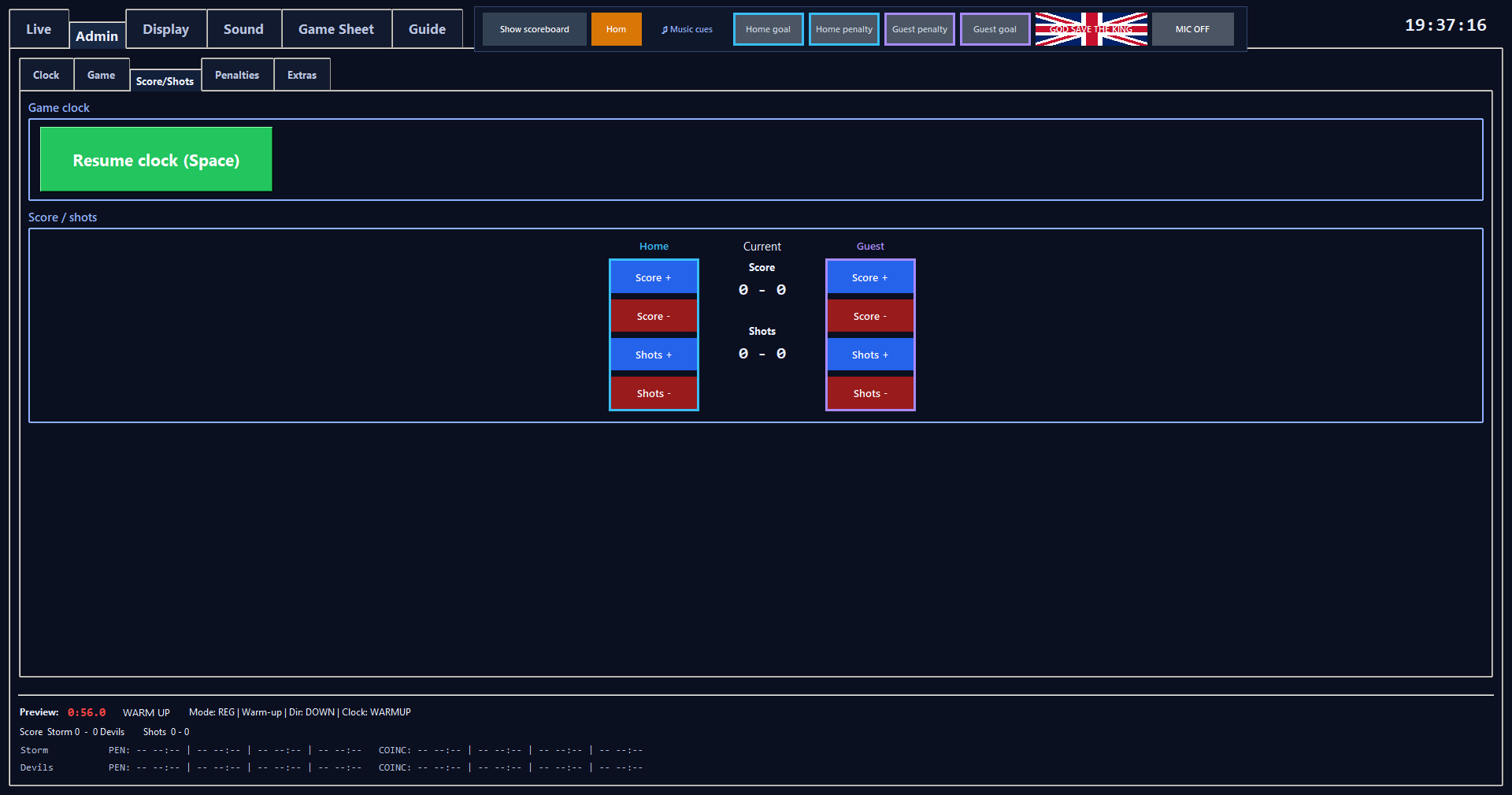
Home Score +/-

Manually increases or decreases Home score for correction or operator entry.

Steps

  1. Use + to add one and - to subtract one.
  2. Values are prevented from becoming negative.

What happens

Updates the authoritative score value used by the scoreboard and bottom preview.
View screen
Score and shots controls

Guest Score +/-

Manually increases or decreases Guest score for correction or operator entry.

Steps

  1. Use + to add one and - to subtract one.
  2. Values are prevented from becoming negative.

What happens

Updates the authoritative score value used by the scoreboard and bottom preview.

View screen
Score and shots controls

Home Shots +/-

Manually increases or decreases Home shots for correction or operator entry.

Steps

  1. Use + to add one and - to subtract one.
  2. Values are prevented from becoming negative.

What happens

Updates the authoritative shots value used by the scoreboard and bottom preview.

View screen
Score and shots controls

Guest Shots +/-

Manually increases or decreases Guest shots for correction or operator entry.

Steps

  1. Use + to add one and - to subtract one.
  2. Values are prevented from becoming negative.

What happens

Updates the authoritative shots value used by the scoreboard and bottom preview.

View screen
Score and shots controls

ADMIN / Penalties

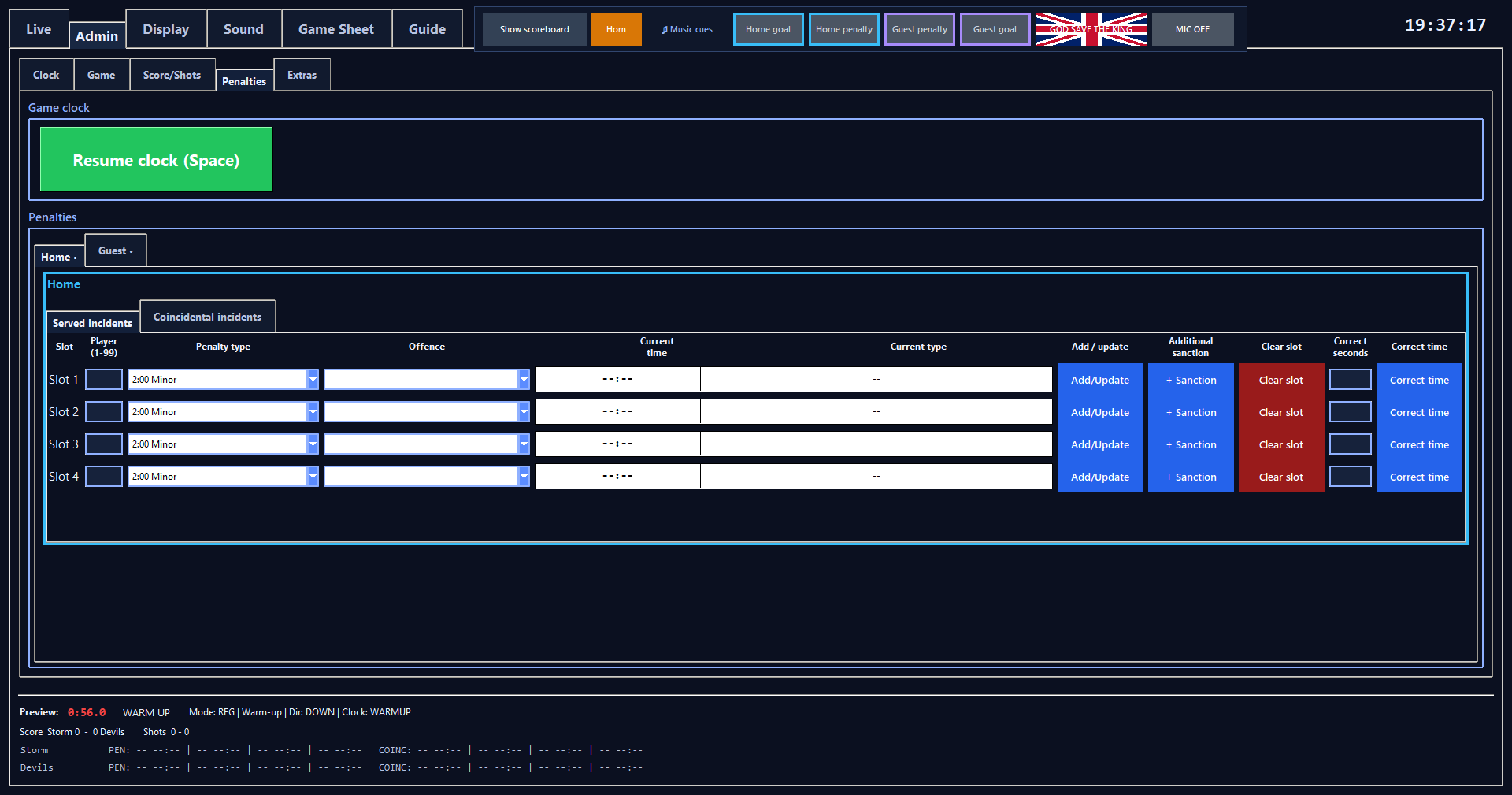
Home / Guest tabs

Selects which team's penalty queues are being edited. Only one team's native controls are mapped at a time for responsiveness.
View screen
Served penalty controls

Normal penalty slots

Provides up to four queued normal penalty records per team. The scoreboard shows the first two normal penalty entries; later strength penalties can wait in the queue.

View screen
Served penalty controls

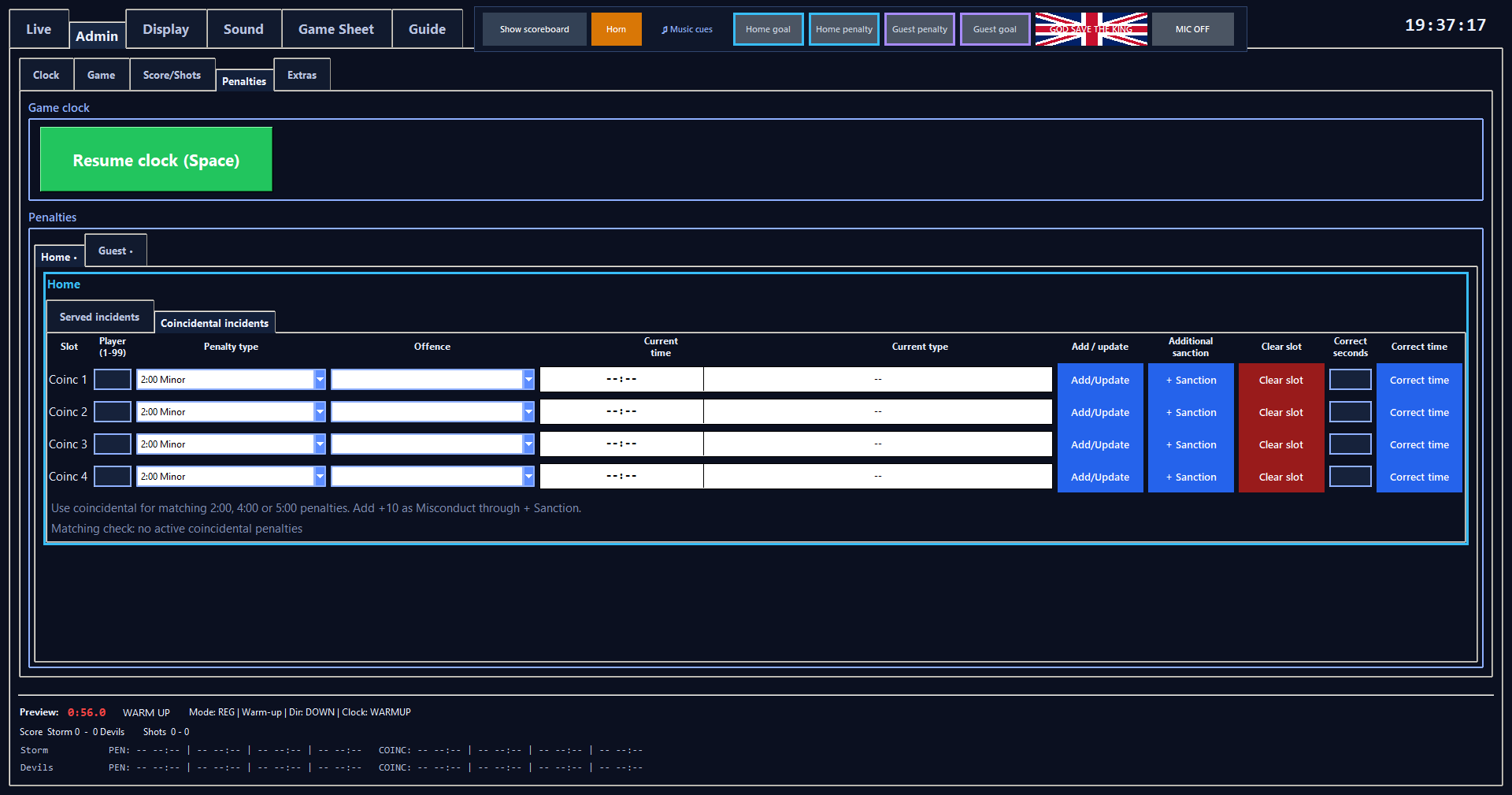
Coincidental slots

Stores up to four matching 2:00 Minor, 4:00 Double Minor or 5:00 Major incidents per team. A standalone 10:00 Misconduct is deliberately not offered here because it is served by the player rather than classified as coincidental time.

The matching check highlights obvious Home/Guest imbalances without blocking entry of the first side of a pair. Any later linked component explicitly marked Served joins the normal two-running-penalties calculation.
View screen
Coincidental penalty controls

Player number

Records the penalised player's number for a slot.

Steps

Enter a whole number from 1 to 99.

View screen
Served penalty controls

Penalty type

Served incidents offer Minor 2:00, Double Minor 4:00, Major 5:00 and Misconduct 10:00. Coincidental incidents offer only Minor 2:00, Double Minor 4:00 and Major 5:00; +10 is added as Misconduct through + Sanction.

View screen
Served penalty controls

Current time / Current type

Read-only status showing the live remaining time and active type in each slot.

What happens

For a Double Minor, displayed total time is current stage remaining plus the next 2:00 stage while stage 1 is active.

View screen
Served penalty controls

Add/Update

Creates or replaces the selected slot from the player number and base penalty type controls.

Steps

  1. Stop the game clock, enter player number, select the base type, then press Add/Update.
  2. Existing linked additional sanctions are retained when the base entry is updated.

What happens

The queue, scoreboard penalty display and strength/PP indicator update from the authoritative penalty incident.

View screen
Served penalty controls

Additional sanction

Adds linked 2, 5 or 10 minute sanctions to an existing Served or Coincidental incident, with status stored per component.

Steps

  1. Add the base penalty first, then press + Sanction.
  2. Choose +2, +5 or +10; press the same value repeatedly for multiples such as 2+10+10 or 5+5.
  3. Remove last or Clear additional can correct the linked list before Apply.

What happens

Linked sanctions run sequentially. A 2+10 is therefore 2:00 followed by 10:00, never a single 12:00 strength penalty.

Strength and PP behaviour are recalculated for the currently active component.

View screen
Served penalty controls

Correct seconds / Correct time

Sets a slot to an exact remaining number of seconds without recreating the penalty.

Steps

Enter corrected whole seconds and press Correct time.

View screen
Served penalty controls

Clear slot

Removes the selected penalty record from the queue immediately.

Steps

Use for an operator correction or when instructed; this is not the same as automatic PP-goal cancellation.

View screen
Served penalty controls

ADMIN / Extras

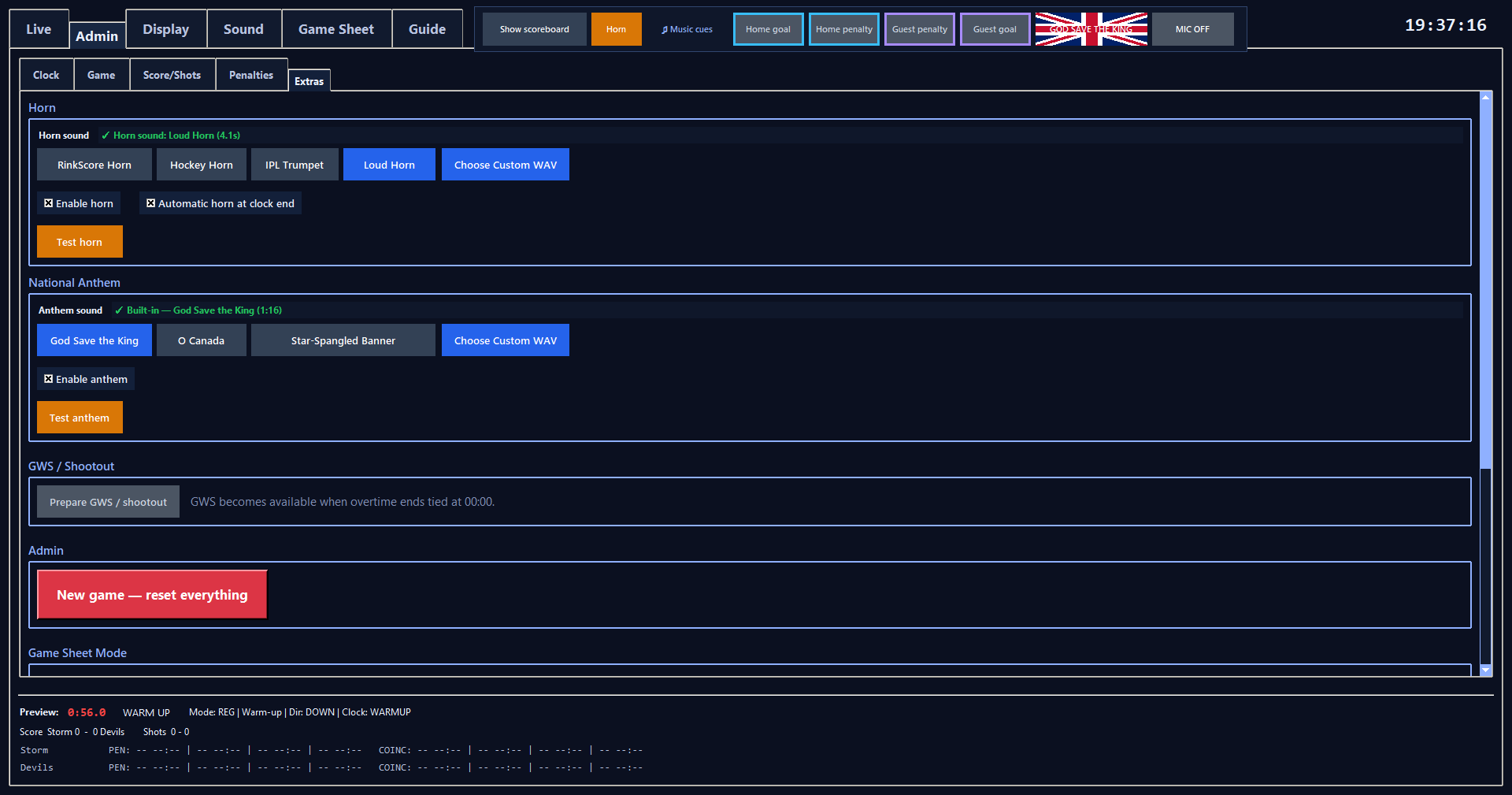
Enable horn

Master enable for LIVE and automatic match horn playback. RinkScore includes four embedded horn presets, so LIVE HORN is available by default whenever Enable horn is on.

Steps

  1. RinkScore Horn is the short default.
  2. Hockey Horn is the long arena-style option.
  3. IPL Trumpet and Loud Horn provide two more built-in choices.
  4. Choose Custom WAV only when a venue wants another sound.
When to use it

If a custom WAV becomes unavailable, RinkScore falls back to the default embedded RinkScore Horn.

Saved settings

Saved in scoreboard settings.

View screen
Horn, anthem and match extras

Automatic horn at clock end

Sounds the configured WAV once when an active timed clock reaches its end boundary.

Steps

  1. It sits on the same row as Enable horn.
  2. For Count Down, clock end is 00:00.
  3. For Count Up, clock end is the configured duration (for example 20:00 for a 20-minute period).
When to use it

Available only when Enable horn is on and a valid WAV is selected. Applies to regulation/overtime period, warm-up, intermission and timeout clocks.

Saved settings

Saved in scoreboard settings.

View screen
Horn, anthem and match extras

TEST HORN

Plays the active horn for setup/testing even when Enable horn is off.

When to use it

TEST HORN normally uses the built-in RinkScore horn unless a usable custom WAV is selected.

View screen
Horn, anthem and match extras

Horn sound / embedded presets / Choose Custom WAV

RinkScore ships with four embedded horn presets used by LIVE, automatic clock-end and TEST HORN playback. A venue can optionally choose its own WAV.

Steps

  1. RinkScore Horn selects the short default horn.
  2. Hockey Horn selects the longer arena-style horn.
  3. IPL Trumpet and Loud Horn select the additional embedded presets.
  4. Choose Custom WAV selects a readable .wav file.
  5. While a horn is sounding, LIVE Orange pauses it, Green resumes it and Red stops it; pressing HORN itself again also stops it.

What happens

All embedded horns are extracted automatically to %LOCALAPPDATA%\RinkScore\Audio and repaired if a writable copy is missing or corrupt. Horn stop retains the normal two-second post-horn silence before interrupted music resumes.

Saved settings

The selected embedded preset or custom path is saved in scoreboard settings. New Game returns to the default RinkScore Horn.

View screen
Horn, anthem and match extras

National Anthem

Selects and configures the United Kingdom, Canadian or United States ceremonial anthem used by the flag header button.

Steps

  1. Choose God Save the King, O Canada or Star-Spangled Banner using the three fully labelled preset buttons.
  2. Each supplied recording is built into RinkScore.
  3. Choose Custom WAV overrides the currently selected country, Enable anthem uses the same checkbox pattern as Enable horn, and Test anthem plays the selected source for setup.
  4. The LIVE button changes its flag and wording with the selected country and always asks for confirmation before playback.
  5. While active, LIVE Orange pauses, Green resumes and Red stops the anthem.

What happens

Anthem playback takes exclusive arena-audio priority and follows Master Volume live. Pause preserves the exact remaining anthem duration.

If music was playing, RinkScore remembers the exact track and position, then resumes it after the active music context's configured Delay when the anthem ends or is stopped and the context is still valid. Turning Music OFF cancels an active anthem immediately so the anthem control is ready as soon as Music is turned back ON.

Saved settings

Enable state, selected country and the built-in/custom source for each country are saved in scoreboard_settings.json and survive New Game.

View screen
Horn, anthem and match extras

ADMIN / Game

REG / OT / SO mode

Manually selects regulation, overtime or shootout display/clock mode for recovery or the next phase.

Steps

  1. Change only with the game stopped.
  2. SO mode stops normal main-clock ticking; the app does not automate the GWS shooting sequence.

What happens

Changing mode resets the main clock to the selected mode's configured length and leaves it paused.

View screen
Team and timing settings

ADMIN / Extras

Prepare GWS / Shootout

Moves a tied game from completed overtime into Shootout mode without starting another intermission.

Steps

  1. When OT reaches 00:00 tied, open ADMIN > Extras and press PREPARE GWS / SHOOTOUT.
  2. The button is enabled only while the score is tied, OT is at 00:00 and the clock is stopped.

What happens

Mode changes to SO, MAIN remains stopped at 00:00, and normal main-clock ticking is disabled for the GWS sequence.

ADMIN / Game

OT length

Sets the overtime period length used when OT is prepared or reset.

Steps

  1. OT is the final timing row in ADMIN > Game > Period / Intermission.
  2. Change it there and press APPLY TIMING beneath the timing values.
Saved settings

Saved immediately to scoreboard settings when APPLY TIMING is pressed.

View screen
Team and timing settings

ADMIN / Extras

NEW GAME - RESET EVERYTHING

Returns fixture and scoreboard presentation state to clean defaults for a genuinely new match.

Steps

  1. Use only for a new fixture.
  2. It clears team names, scores, shots, penalties, timeout usage, clocks, team/league branding, Pre-Match and Post-Match text, display formatting, selected theme and any custom horn override.

What happens

Period returns to 1 and the scoreboard returns to Pre-Match.

Saved settings

Reusable Music, Advertising and Media Library configuration is kept. Engineering Diagnostics remains a separate troubleshooting setting.

View screen
Horn, anthem and match extras

Diagnostic logging

Creates an engineering diagnostic log while reproducing a UI or music/penalty issue.

Steps

  1. Enable only while reproducing the problem; the live status line shows the current diagnostic path or an error.
  2. Startup diagnostics split core first-paint work, interaction-aware staged UI pre-warming, deferred audio-backend startup and music cache/duration maintenance into separate timings.
Saved settings

Diagnostics start off each app launch.

Create UPLOAD snapshot / Open Diagnostics

Drains the LIVE diagnostic log and creates a closed, upload-safe snapshot while RinkScore keeps running.

Steps

  1. Enable LIVE diagnostic log, reproduce the issue, then press Create UPLOAD snapshot / Open Diagnostics.
  2. RinkScore waits for the background diagnostic queue to drain, writes DIAGNOSTICS_FLUSH_COMPLETE with queued/written/error counts, drains again so that proof marker is included, copies the LIVE TXT to a timestamped _EXPORT snapshot and selects that closed UPLOAD snapshot in Explorer.
  3. Diagnostic logging continues into the LIVE session file afterwards.
When to use it

Creates a closed UPLOAD snapshot while the LIVE diagnostic log is enabled; if Diagnostics is off it simply opens the Diagnostics folder.

No topics match this search.