Game Sheet
Game Sheet workspace
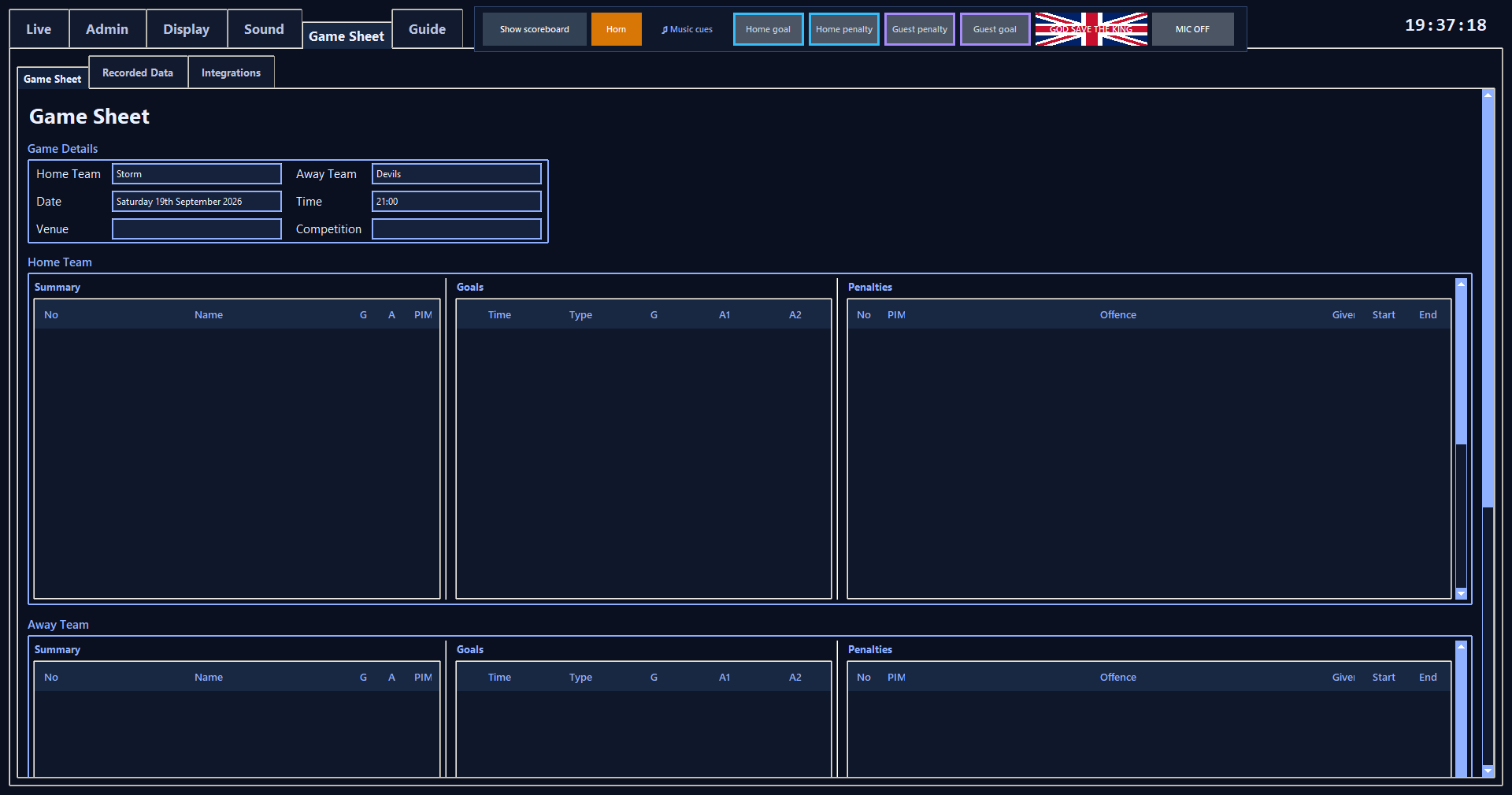
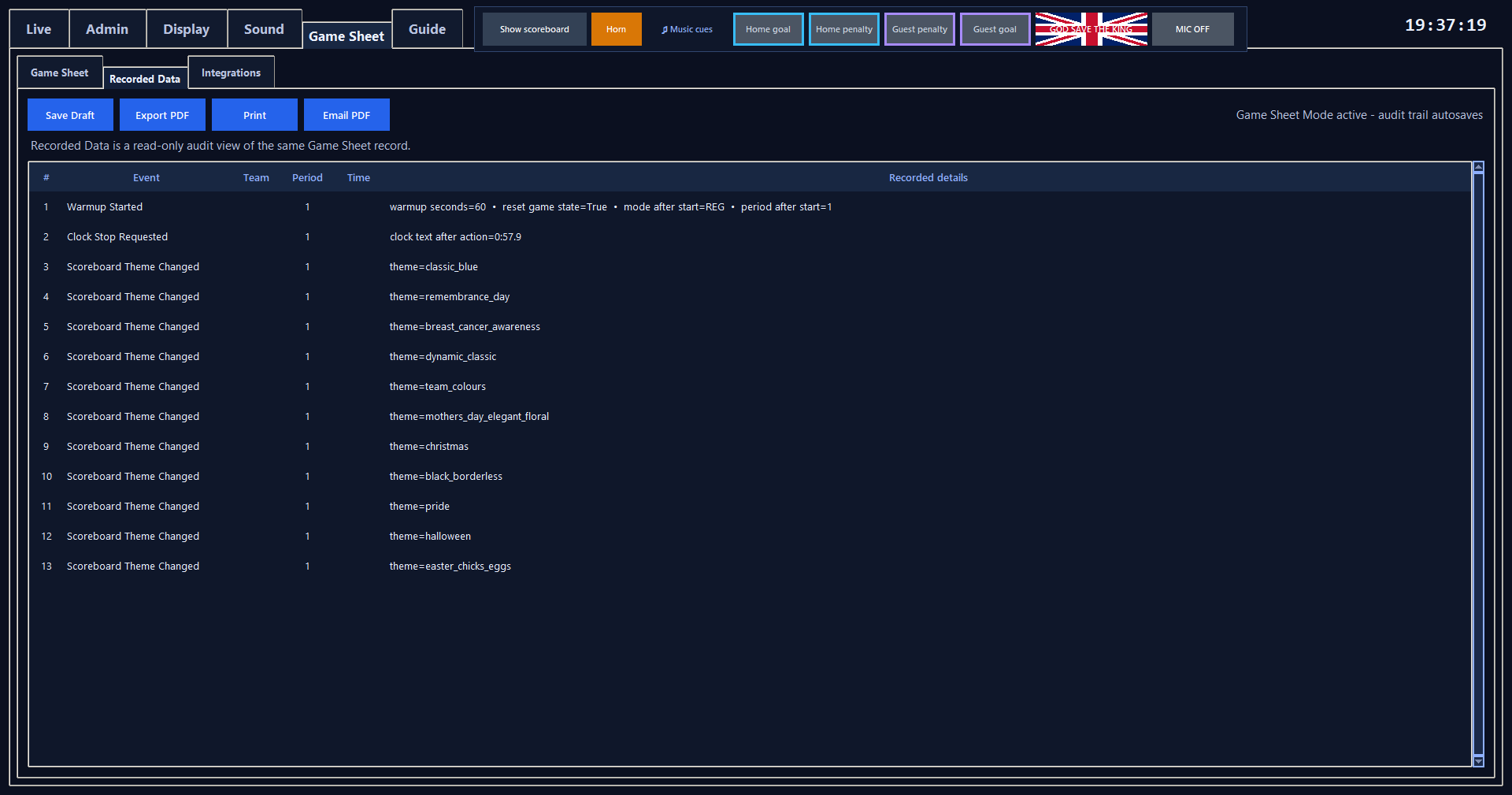
Game Sheet Mode keeps one autosaved match-event record and presents it in two ways: the reconstructed Game Sheet and the read-only Recorded Data audit view.
What happens
The Game Sheet updates as goals, assists, penalties, score, shots and other recorded match information change.
View app screen
Game Sheet form
Starting a match
Standard Scoreboard vs Game Sheet Mode
Every press of Start Warm-up asks which match mode to use.
Steps
- Select Standard Scoreboard for scoreboard operation without a match-event history.
- Select Game Sheet Mode when you want the one autosaved match-event record, scorer/assist capture, offence details and the reconstructed Game Sheet.
- Selecting either option starts Warm-up immediately.
- Cancel leaves the current state unchanged.
When to use itChoose the mode at the start of each match. Game Sheet Mode can also be activated from the Game Sheet workspace before events are recorded.
Game Sheet
Game details
Home Team, Away Team, Date, Time, Venue and Competition are editable at the top of the sheet.
Steps
- Check the team, date and time values.
- Enter Venue manually for the current fixture.
- Enter Competition when required.
- Click into any field to correct it; leaving the field autosaves the change.
What happens
The values are stored with the active Game Sheet record.
View app screen
Editable game details
Summary, Goals and Penalties
Each team has three clearly separated sections: Summary, Goals and Penalties.
Steps
- Summary lists No, Name, G, A and PIM for players involved in recorded events.
- Goals lists Time, Type, G, A1 and A2.
- Penalties lists No, PIM, Offence, Given, Start and End.
What happens
Summary totals are recalculated from the recorded events. Goal and penalty rows appear as events are recorded or corrected.
View app screen
Home and away Game Sheet sections
Goals
Record a goal
In Game Sheet Mode, adding a goal opens one centred dialog for Goal Scorer, Assist 1 and Assist 2.
Steps
- Enter the scorer number when known.
- Add Assist 1 and Assist 2 when known.
- Player numbers are 1-99 and the three entries cannot duplicate each other.
- Confirm the dialog to record the goal.
What happens
RinkScore derives EV, PP, SH or SO automatically from the scoreboard strength/mode at the moment of the goal. The calculated Type is written to the Goals section and can be corrected later.
Penalties
Record a penalty
Game Sheet Mode records player number, PIM, Offence, total Given time, Start and End for each penalty incident.
Steps
- Choose Penalty Type.
- Choose or type Offence; the list filters as characters are entered.
- Add any Additional Sanction.
- Press Add / Update to record the penalty.
- Game Misconduct and Match Penalty are selected from the same Penalty Type list in Game Sheet Mode.
What happens
Start uses the game clock. End updates when a timed penalty finishes, including an eligible segment ended by a power-play goal.
Game Misconduct and Match Penalty are recorded on the Game Sheet but do not start a scoreboard countdown.
When to use itGame Misconduct and Match Penalty are shown only in Game Sheet Mode. Standard Scoreboard keeps only the scoreboard penalty types.
Editing
Correct the Game Sheet
Editable goal and penalty values can be corrected from the reconstructed Game Sheet.
Steps
- Double-click the value to change.
- RinkScore opens the edit dialog centred over the application.
- Choose from the existing list where one is available: Offence uses the searchable offence list and Goal Type uses EV, PP, SH or SO.
- Save the correction.
What happens
The change autosaves and the player Summary is recalculated from the underlying events.
Recorded Data
Recorded Data
Recorded Data is a read-only audit view of the same autosaved Game Sheet record; it is not a second logging method.
Steps
- Use Game Sheet for normal match operation and corrections.
- Open Recorded Data only when you need to inspect event order, event type, team, period, time or recorded details.
What happens
Both views update from the same event record.
View app screen
Recorded Data tab
Saving
Autosave and Save Draft
Confirmed Game Sheet events and completed edits autosave to the active match record.
Steps
- Use Save Draft when you want an additional editable copy.
- End Game completes the current match record.
- Starting a new Game Sheet creates a new active record; RinkScore does not silently resume an old unfinished Game Sheet.
Saved settingsThe active Game Sheet is stored under the RinkScore GameSheets data folder.
Output
Export PDF, Print and Email PDF
The output controls use the current reconstructed Game Sheet.
Steps
- Use Export PDF when you want to choose a PDF save location.
- Select Print to generate the current Game Sheet PDF automatically and send it to the Windows print workflow.
- Select Email PDF to generate the PDF automatically and open an email draft with the PDF attached when the mail client supports attachments.
What happens
Print and Email PDF always use a freshly generated copy of the current Game Sheet.
View app screen
Save and PDF output controls
Integrations
Integrations
The Integrations tab is marked “To be developed”. It describes a planned connection to supported online sports-management platforms for real-time match updates.
Use the Game Sheet and Recorded Data tabs for current match recording and review.
Recovery
Recover Game and Game Sheet
Recover Game is a scoreboard-state recovery feature, not another event logger.
Steps
- Use Recover Game after an interruption when you need to restore score, clock, period, shots, penalties and timeout state.
- If the match was using Game Sheet Mode, the event history remains the separate autosaved Game Sheet record; Recover Game does not recreate missing Game Sheet events.
When to use itUse recovery only for an interrupted match. It always restores the active scoreboard clock stopped so the operator can verify the rink state before resuming.